How to reorder, edit and remove fields from a form
In this article, we'll guide you through reordering, editing and removing fields from a form that has already been added to a page.
To add or configure fields first, follow how to build and edit a website form.
Open the form builder
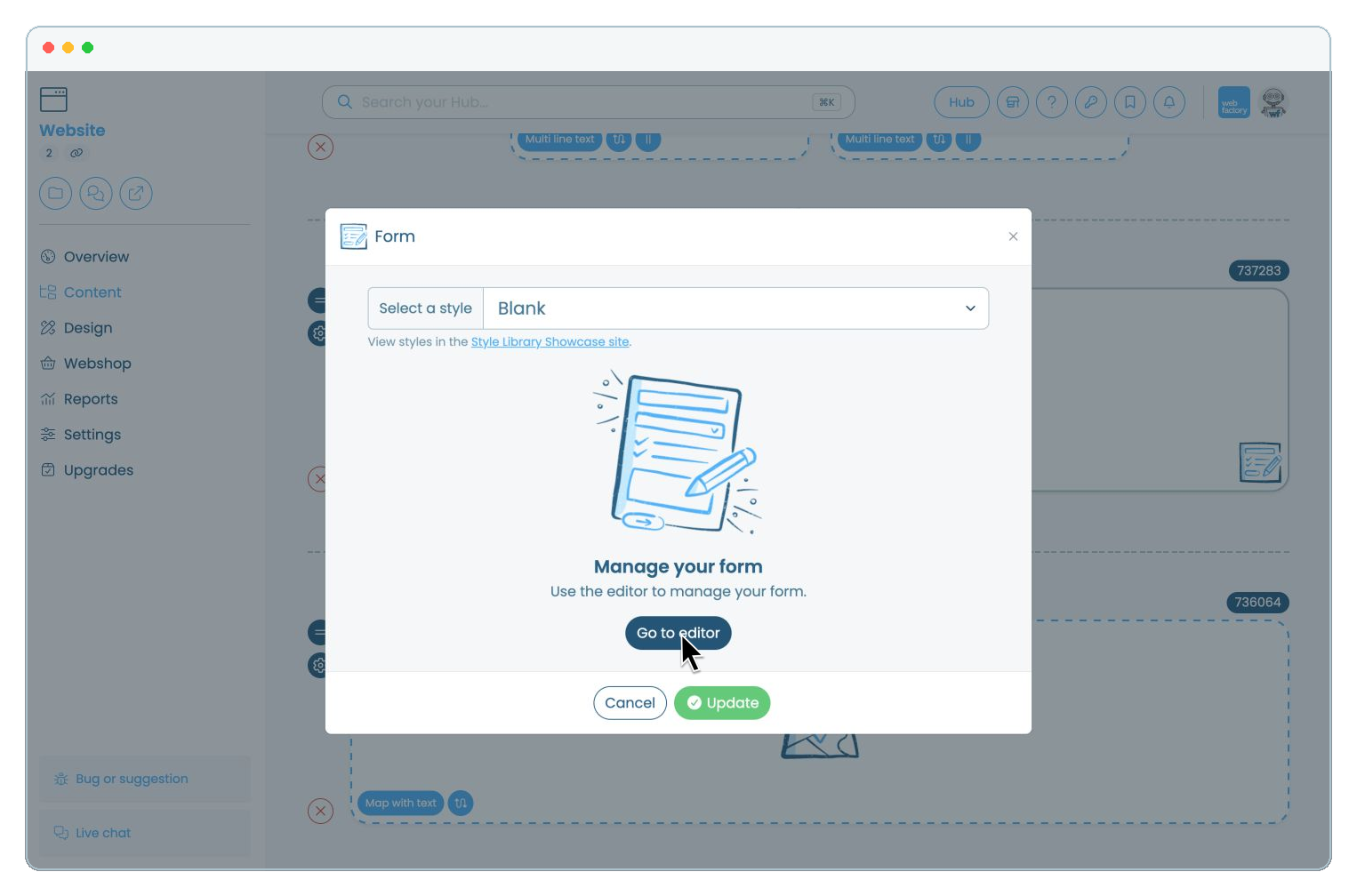
In the website editor, go to 'Content' and select 'Pages'. Open the page that contains the form, click the 'Form' element, then select 'Go to editor'.
Reorder a field
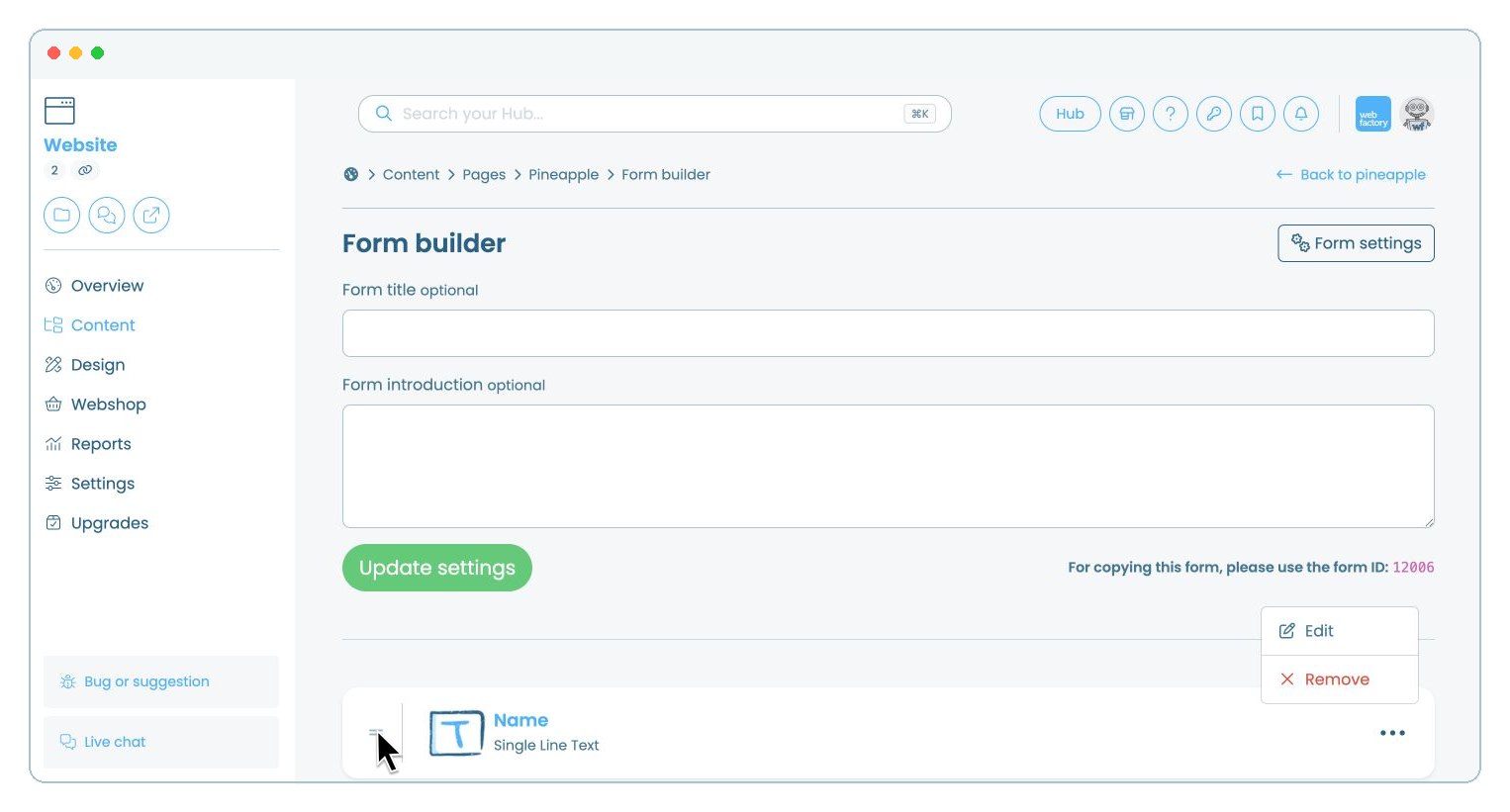
Find the field you want to move. Drag the handle on the left of the field to its new position, then release it.
Edit a field
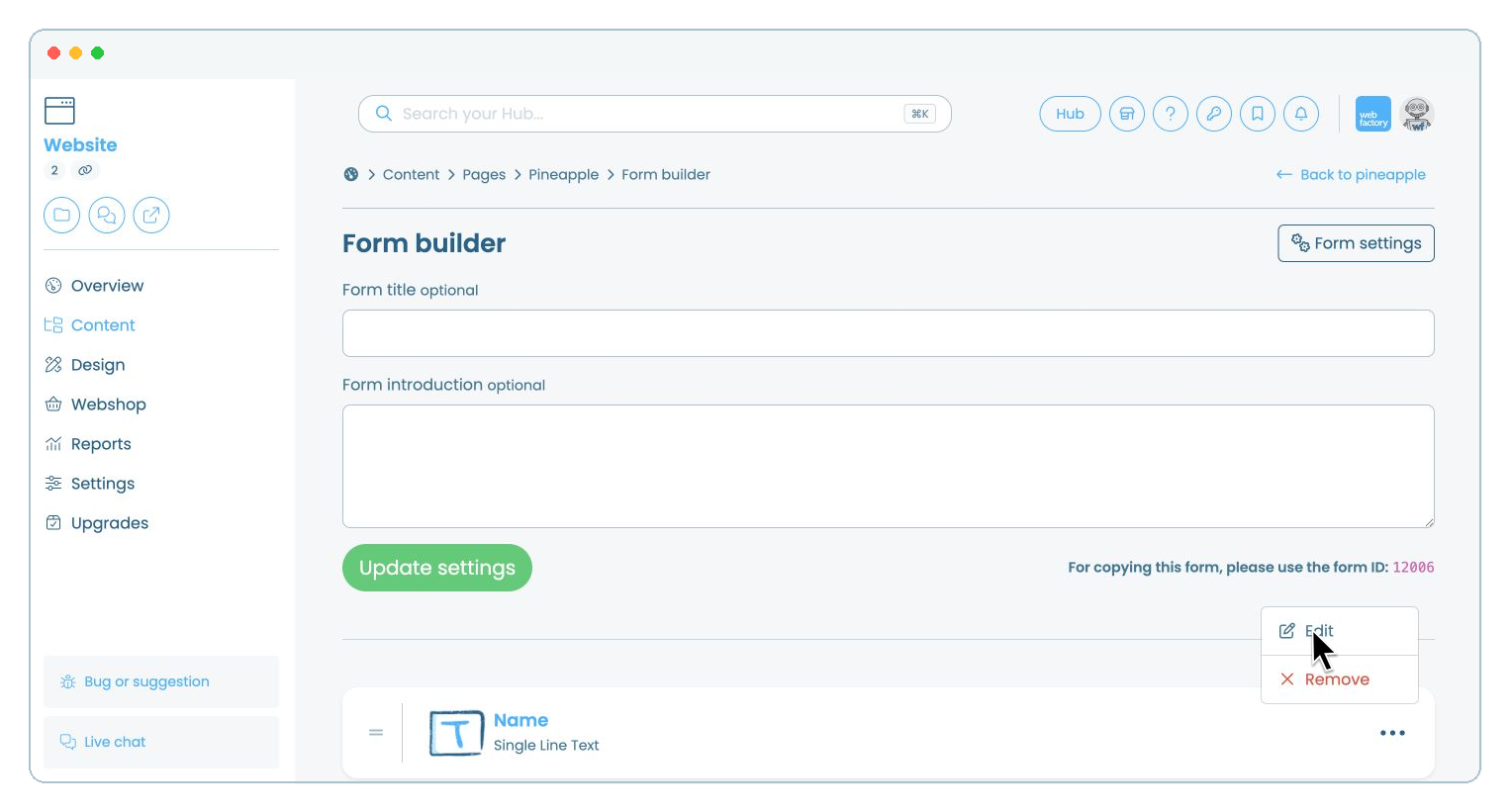
Open the field's 'Settings' menu and select 'Edit'.
Update the field label, type or available options.
Use 'User guidance' for instructions, 'Required' to make the field compulsory, 'Placeholder text' to show an example, 'Character limit' to restrict its length and 'Auto complete helpers' to help browsers suggest saved details. Click 'Update form section'.
Remove a field
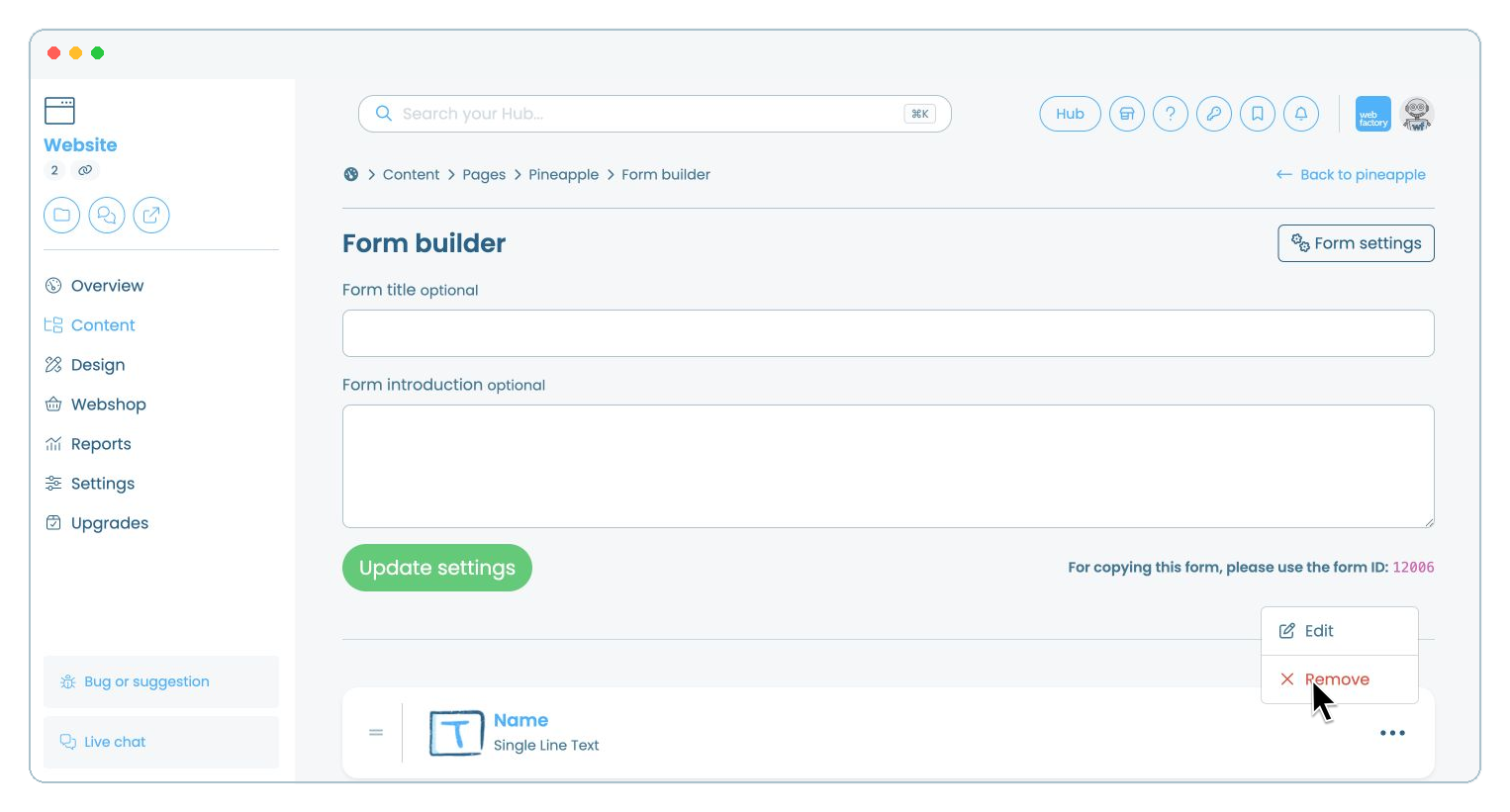
Open the field's 'Settings' menu and select 'Remove'. Confirm the removal if prompted.
Preview the updated form
Return to the page editor and click 'View'. Check the field order and labels, then submit a test entry using non-sensitive information.
Related articles
- How to add a form to your website
- How to build and edit a website form
- How to change the destination email addresses for your website's forms
- How to copy an entire form from your website
- How to find and view your website's form messages
- How to show or hide a request viewing form on your website
- Introduction to the types of forms you can add to a page on your website