How to build and edit a website form
In this article, we'll guide you through building and editing a form that has already been added to a page, including its fields, submission emails and confirmation messages.
If you have not added the form element yet, follow How to add a form to your website first.
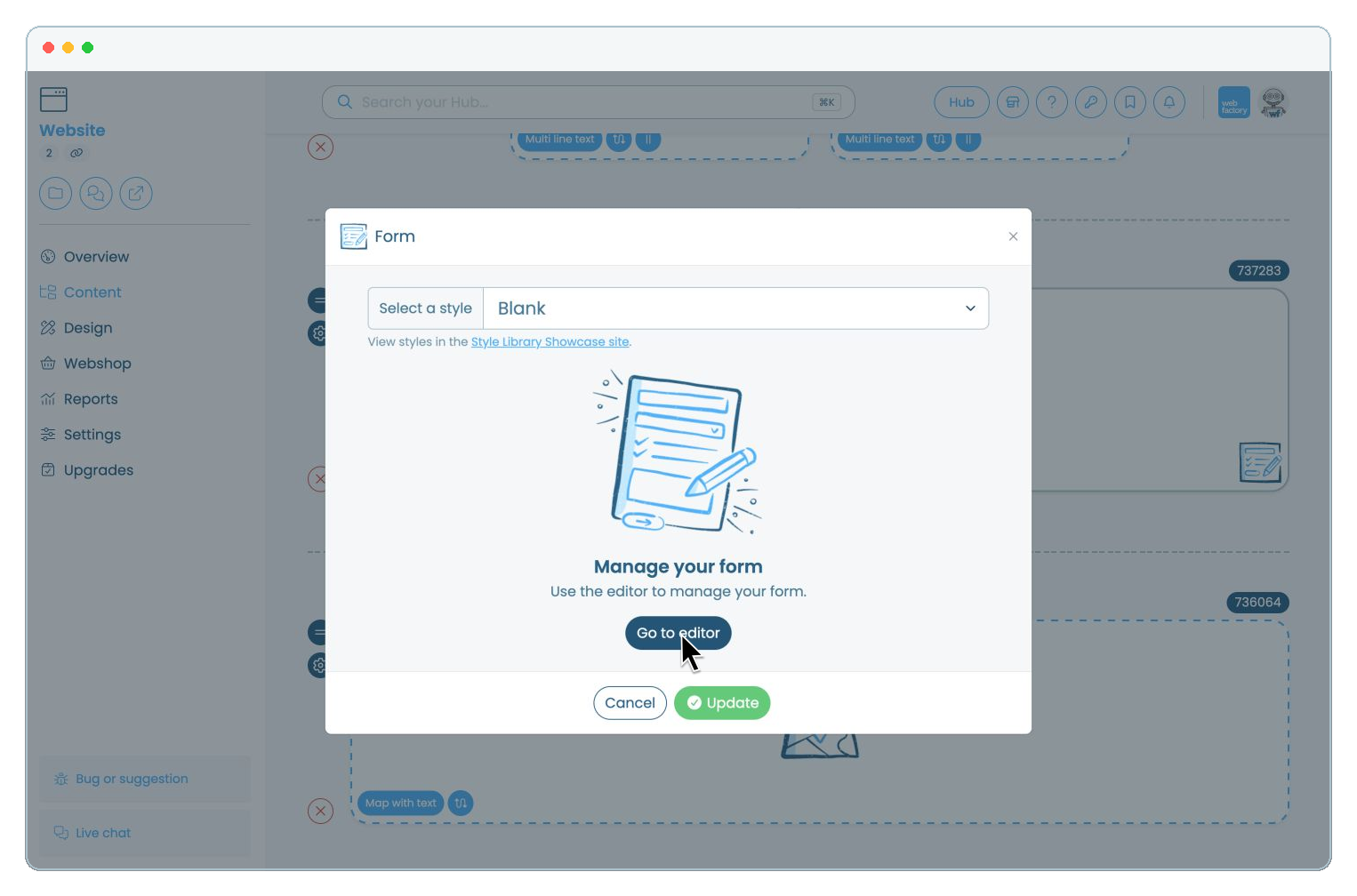
In the website editor, go to Content and select Pages. Open the page that contains the form, click the Form element, then select Go to editor.
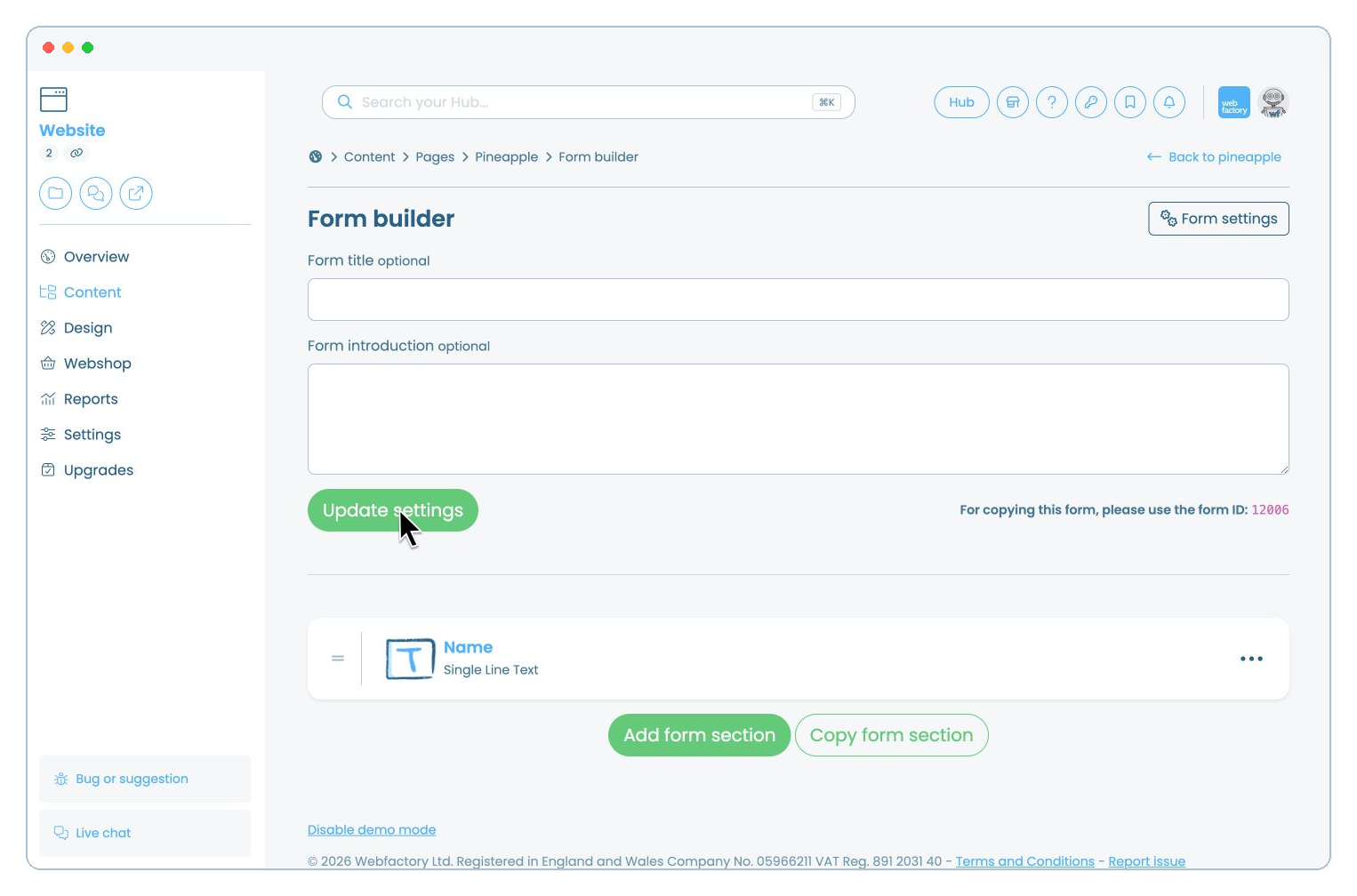
Enter an optional Form title and Form introduction, then click Update settings.
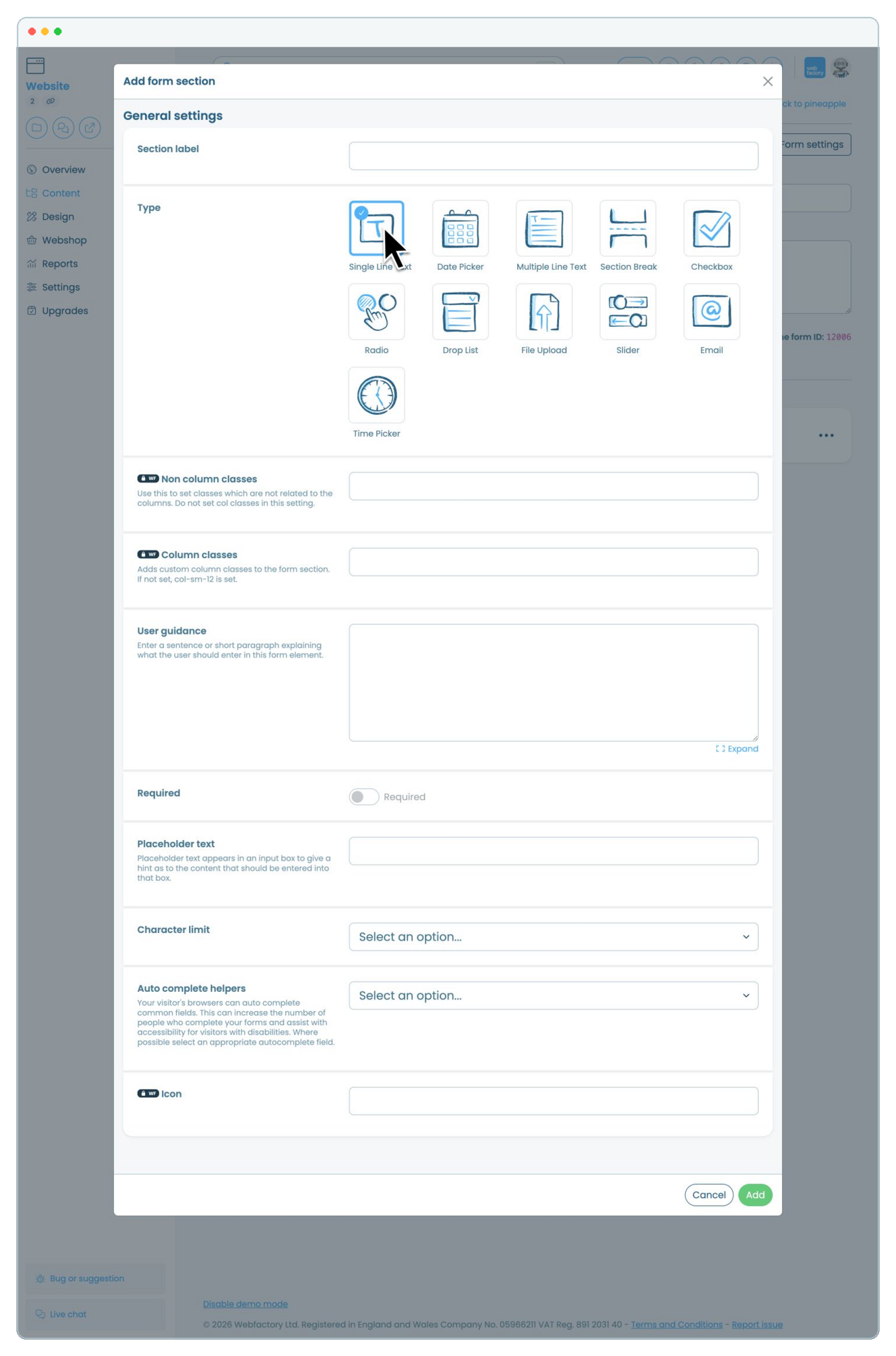
Click Add form section. Enter a clear section label and choose the field type you need.
Complete the available options for that field, including
- User guidance: Extra instructions shown beside the field.
- Required: Makes the field compulsory.
- Placeholder text: Example text displayed inside an empty field.
- Character limit: Restricts how much text can be entered.
- Auto complete helpers: Helps browsers suggest relevant saved information.
Then click Add.
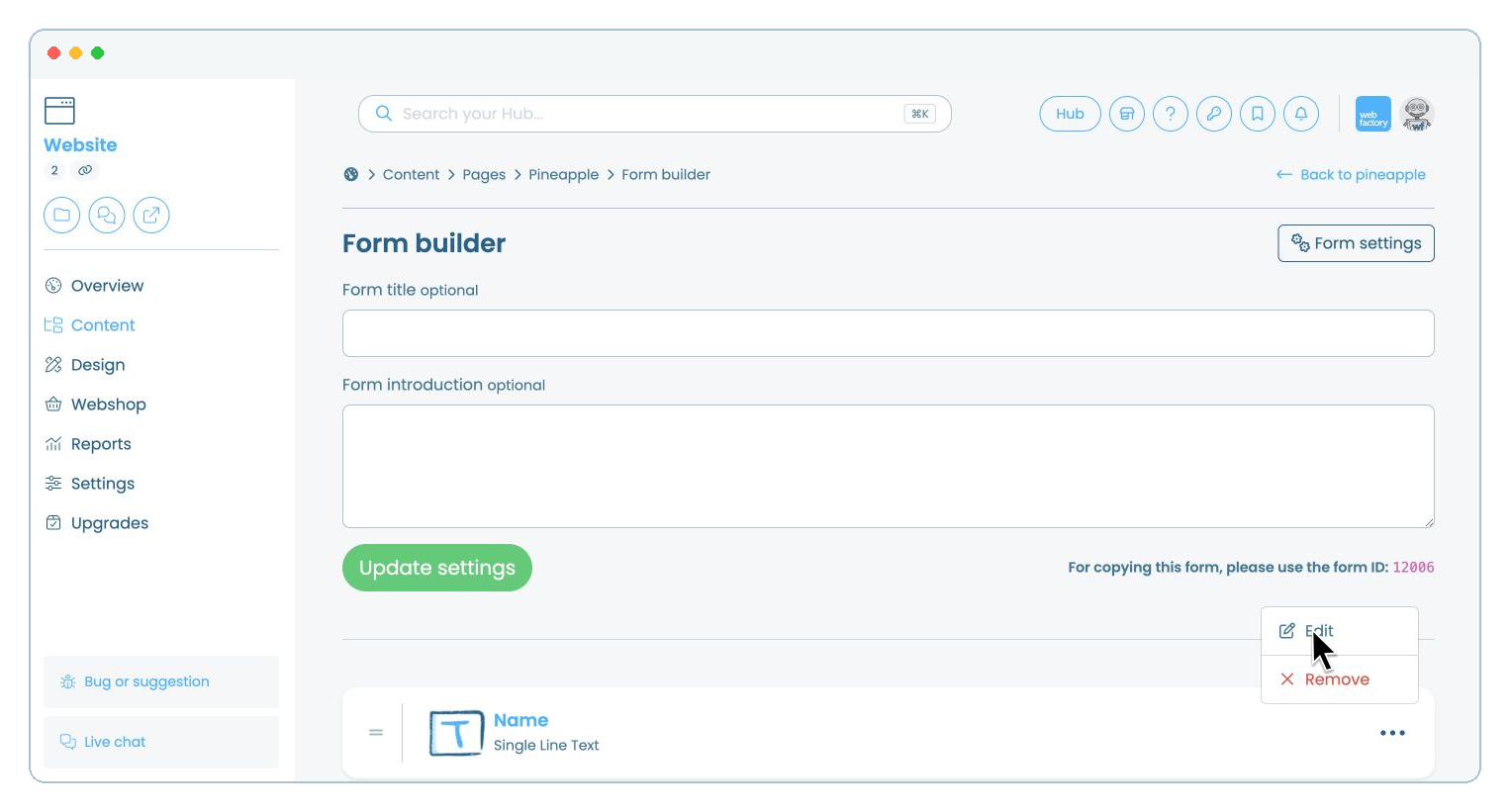
Click a form section's name or open its Settings menu and select Edit. Make your changes, then click Update form section.
Use the drag handle to reorder sections. Select Copy form section to duplicate a field, or open Settings and select Remove to delete one.
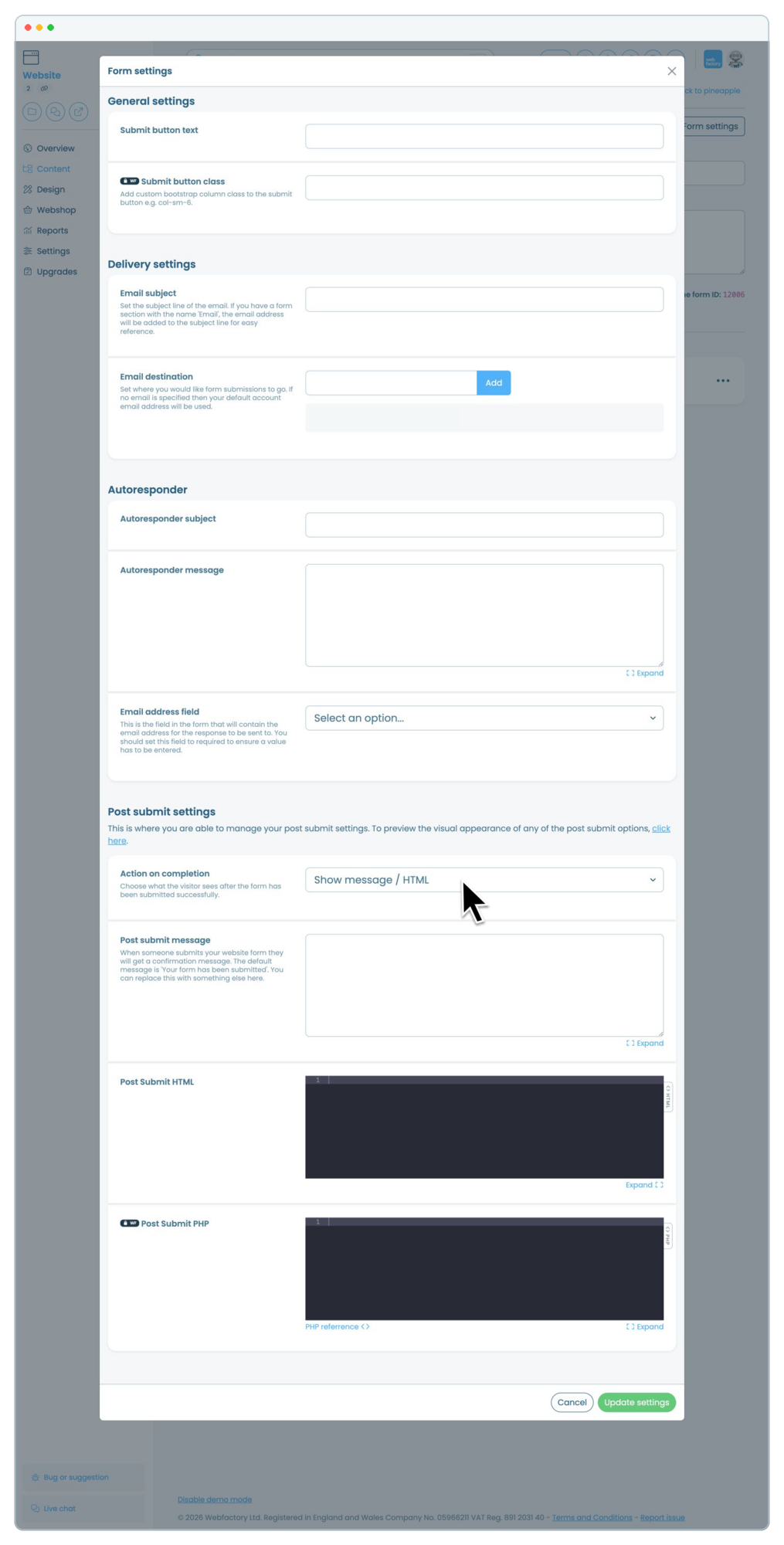
Click Form settings. Add the submit button text, email subject and email destination. To send an automatic reply, add an autoresponder subject and message, then select the form's email field.
Under Post submit settings, choose what visitors see after a successful submission and add the confirmation message. Click Update settings.
Return to the page editor and click View.
You can run a test and check that the message arrives at the correct email destination, the autoresponder is sent and the confirmation message or redirect appears.
Related articles
- How to add a form to your website
- How to change the destination email addresses for your website's forms
- How to copy an entire form from your website
- How to find and view your website's form messages
- How to show or hide a request viewing form on your website
- Introduction to the types of forms you can add to a page on your website