Understanding pending invoices and your account balance
In this article, we'll explain what pending invoices and your account balance mean in your Webfactory Hub.
Only team members with administrator access or the 'Manage account, billing and upgrading' permission can open this area.
To find this page, follow how to view your invoices and payments.
Open the 'Invoices and payments' page in your Hub.
Review 'Pending Invoices'. These are invoices generated in advance, such as ongoing fees, or unpaid balances for products you've already purchased. This section will tell you when there are no pending invoices.
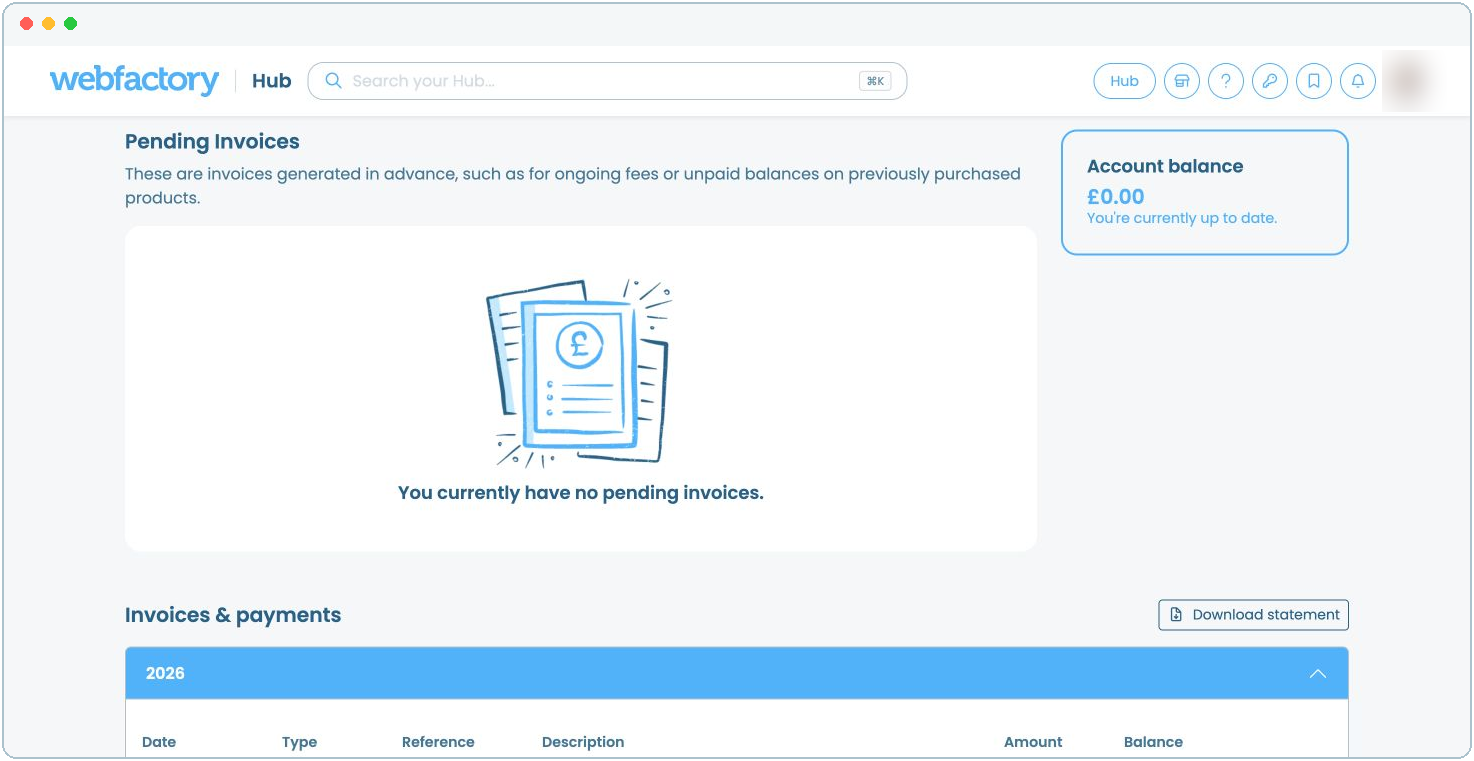
Check 'Account balance'. If it shows '£0.00' and 'You're currently up to date', there is nothing to pay.
If you have an outstanding balance, a 'Make a payment' button will appear. For full instructions, see how to make a payment to your account.
If your account is in credit, this means you've paid more than was due. You can either contact our customer support team to request a refund or leave the credit on your account, and it will automatically be applied to your next invoice.
Use the 'Invoices and payments' table to see how individual invoices and credit invoices change the running balance. Select 'PDF' to open an invoice, or select 'Download statement' to save your full statement.
A pending invoice is not necessarily overdue. Open its PDF and check the due date before making a payment.