How to deactivate or remove a Webshop customer account
In this article, we'll guide you through deactivating or removing a customer account from your Webshop.
Deactivating an account prevents the customer from logging in while keeping the account available to reactivate. Removing an account prevents future logins, but previous orders will still show the account.
In the website editor, go to the 'Webshop' tab.
Select 'Customer accounts'.
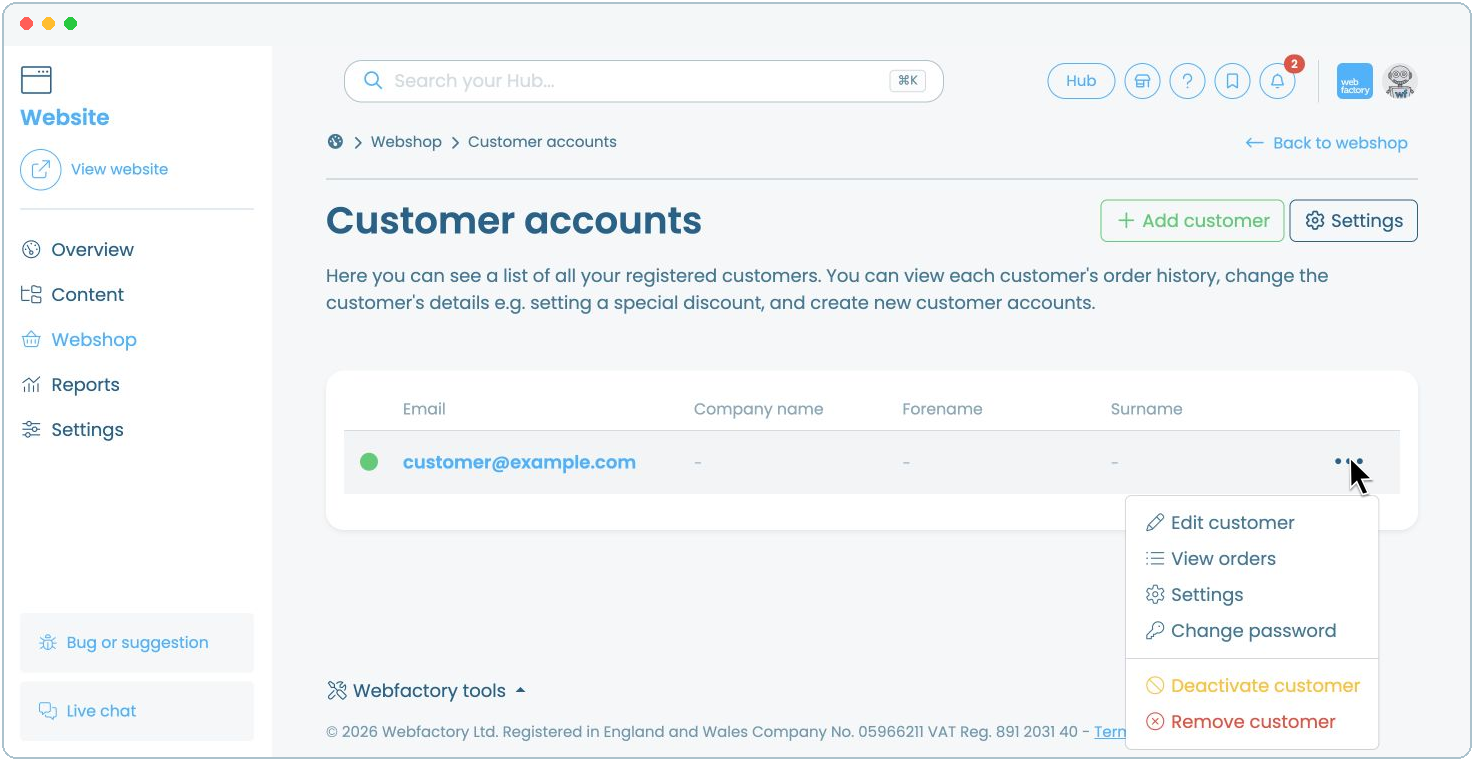
Select 'Deactivate customer'.
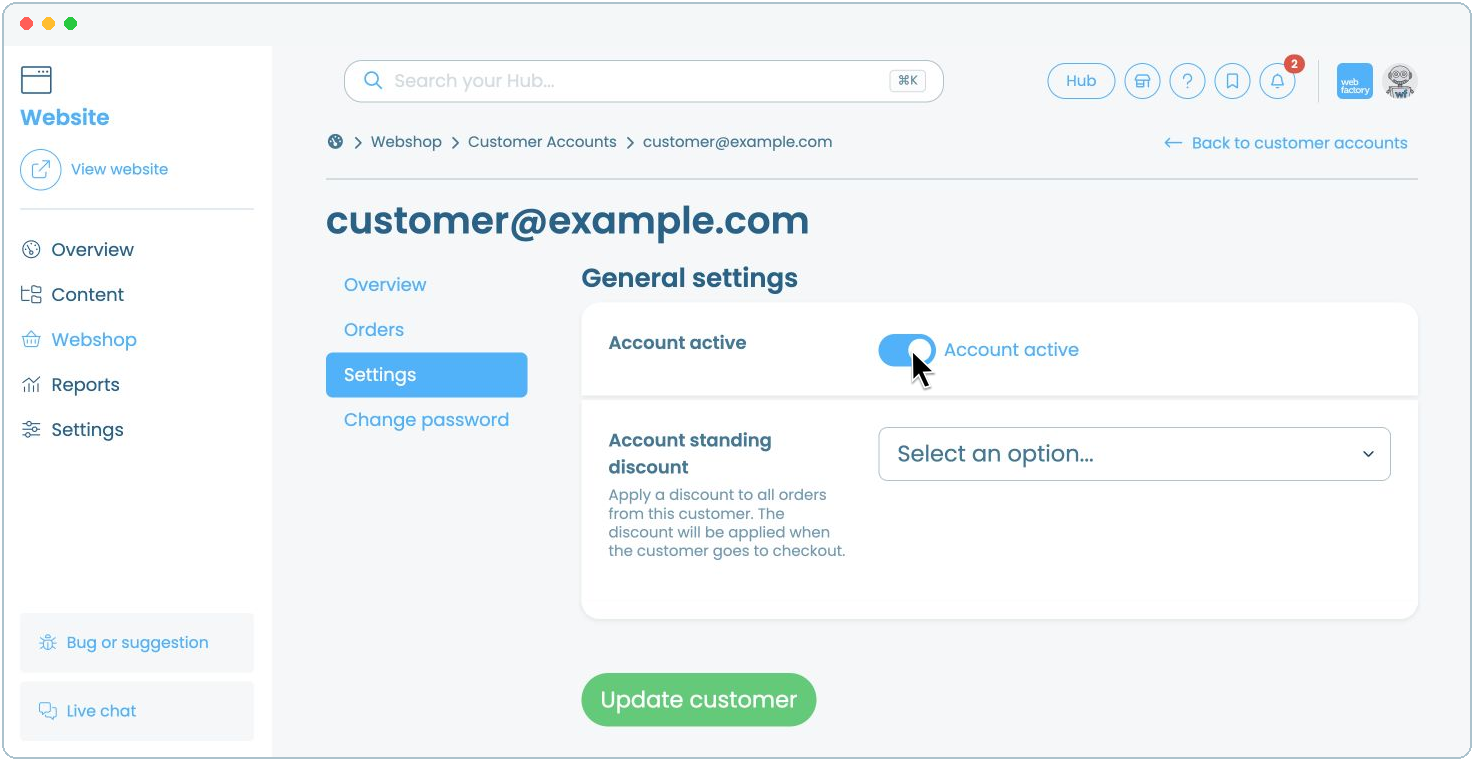
To reactivate the account later, select the customer's email address and open 'Settings'. Turn 'Account active' on, then select 'Update customer'.
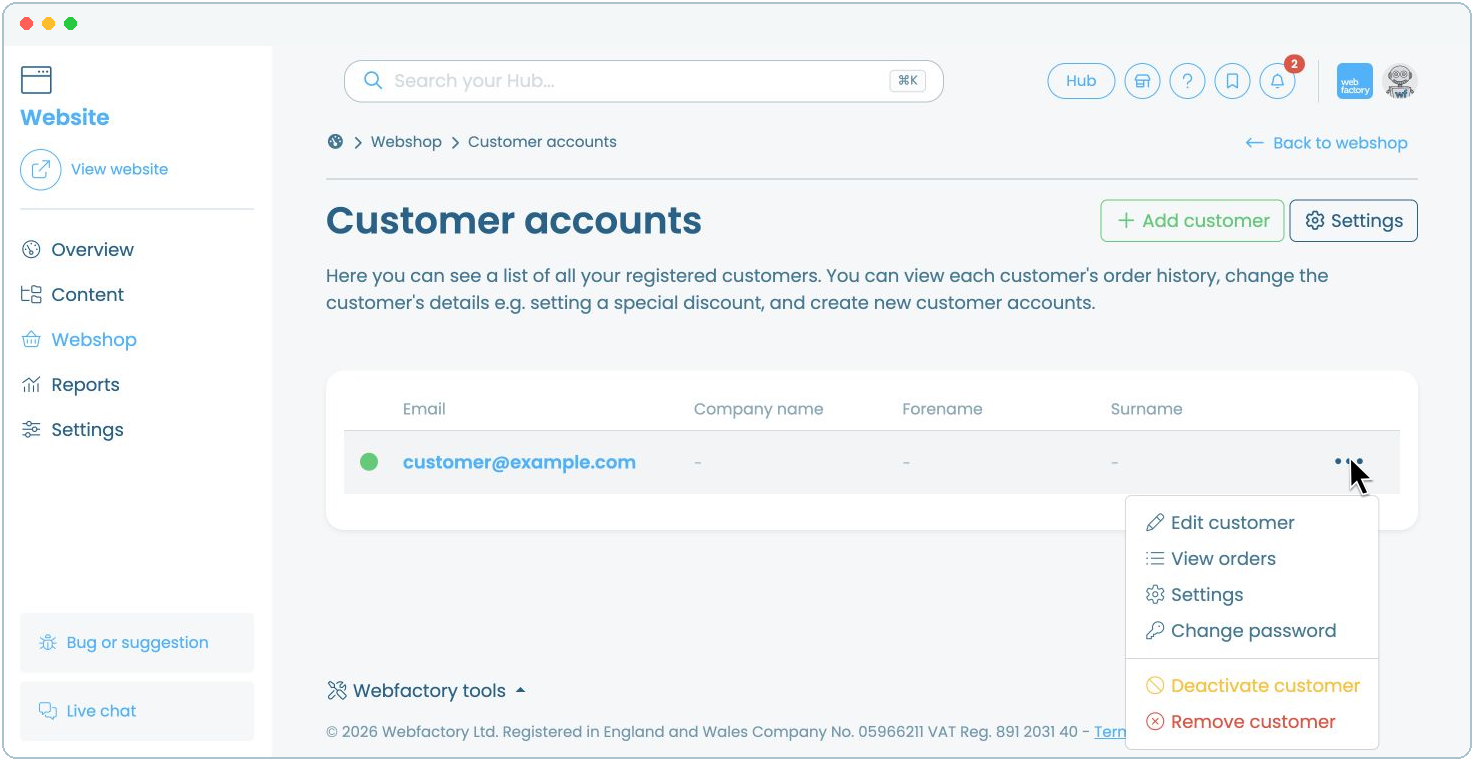
In the website editor, go to the 'Webshop' tab.
Select 'Customer accounts'.
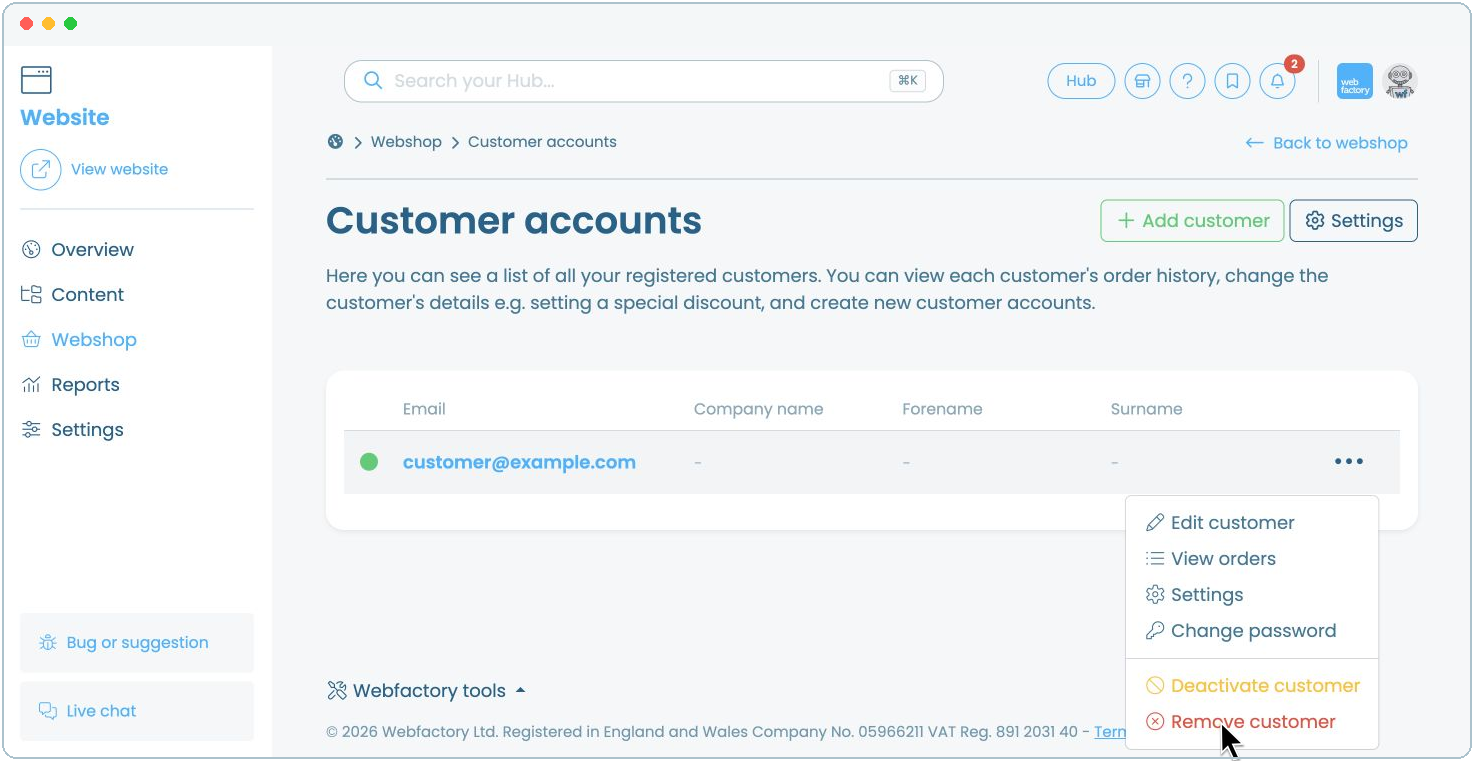
Check the warning, then select 'Confirm'. The customer will no longer be able to log in, but their previous orders will still show the account.
Use 'Deactivate customer' if you may need to restore the customer's access later. For other customer account options, see How to manage customer accounts.