How to add an Instagram Feed to a website page
In this article, we'll guide you through adding an Instagram Feed to a website page, selecting its style and connecting your Instagram account when needed.
Please note that for the Instagram feed to display correctly on your website, you'll need to switch to an Instagram Business account.
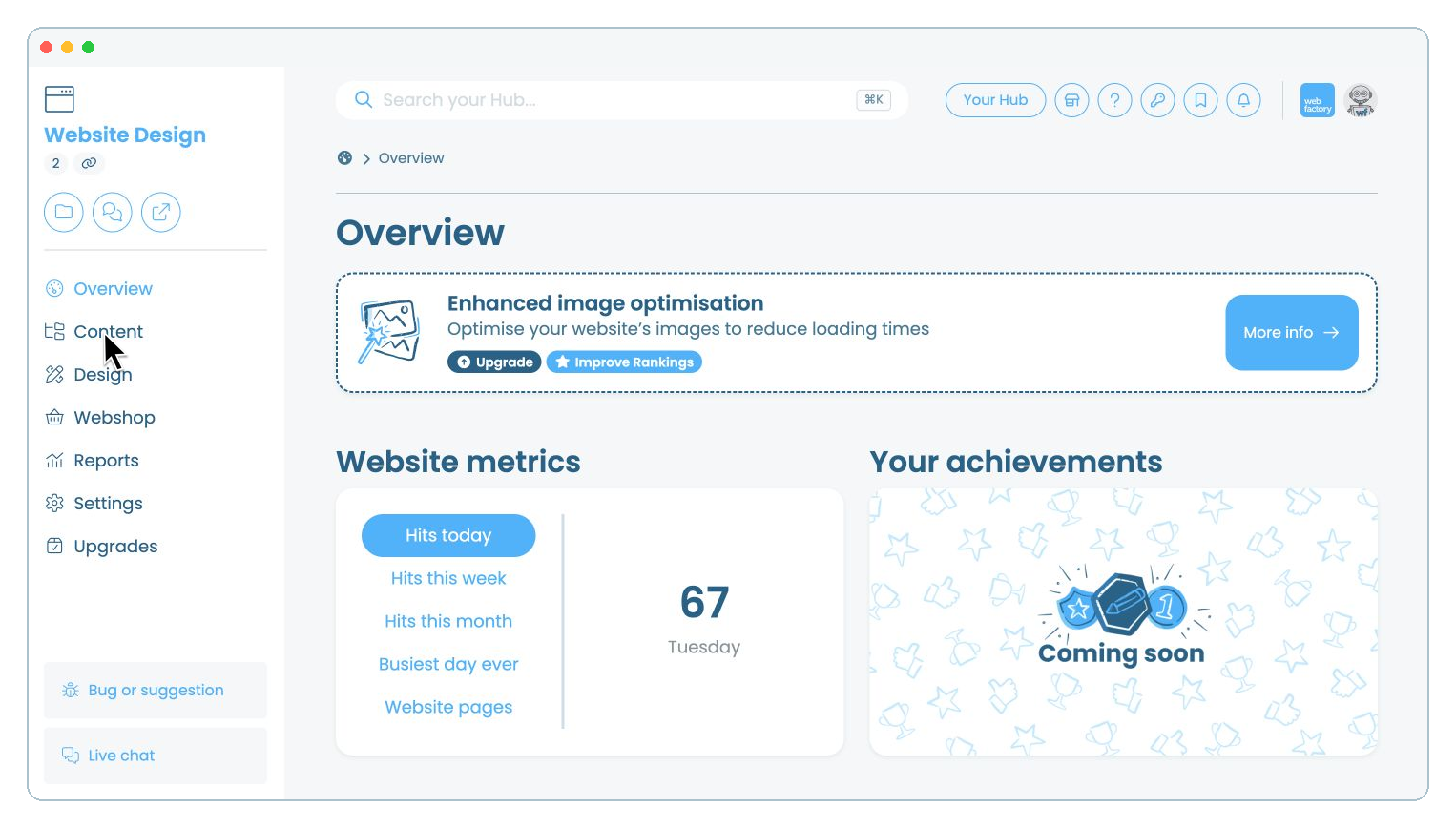
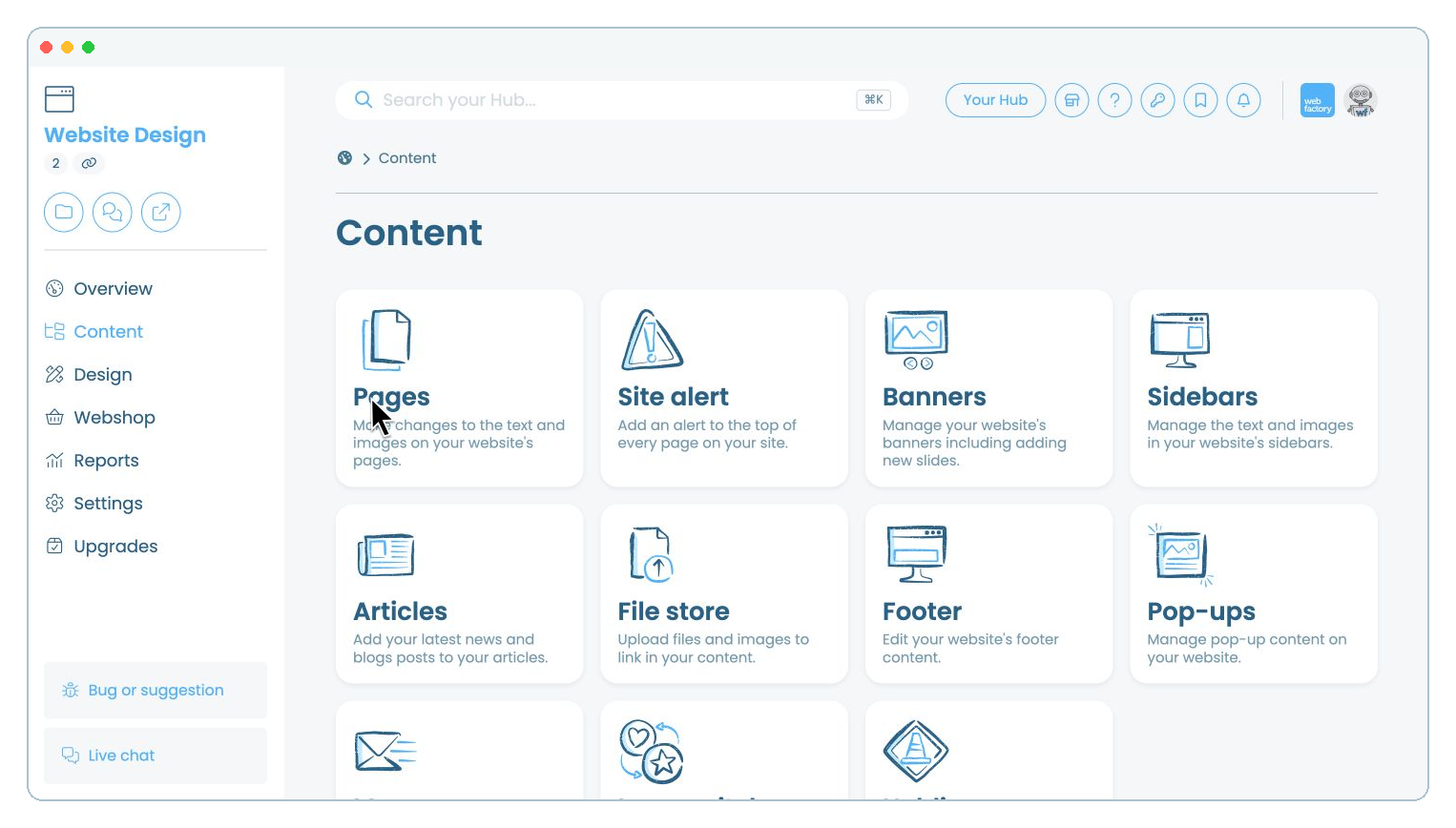
Step 3
Click the name of the page where you want to add the Instagram Feed, for example, 'home'.
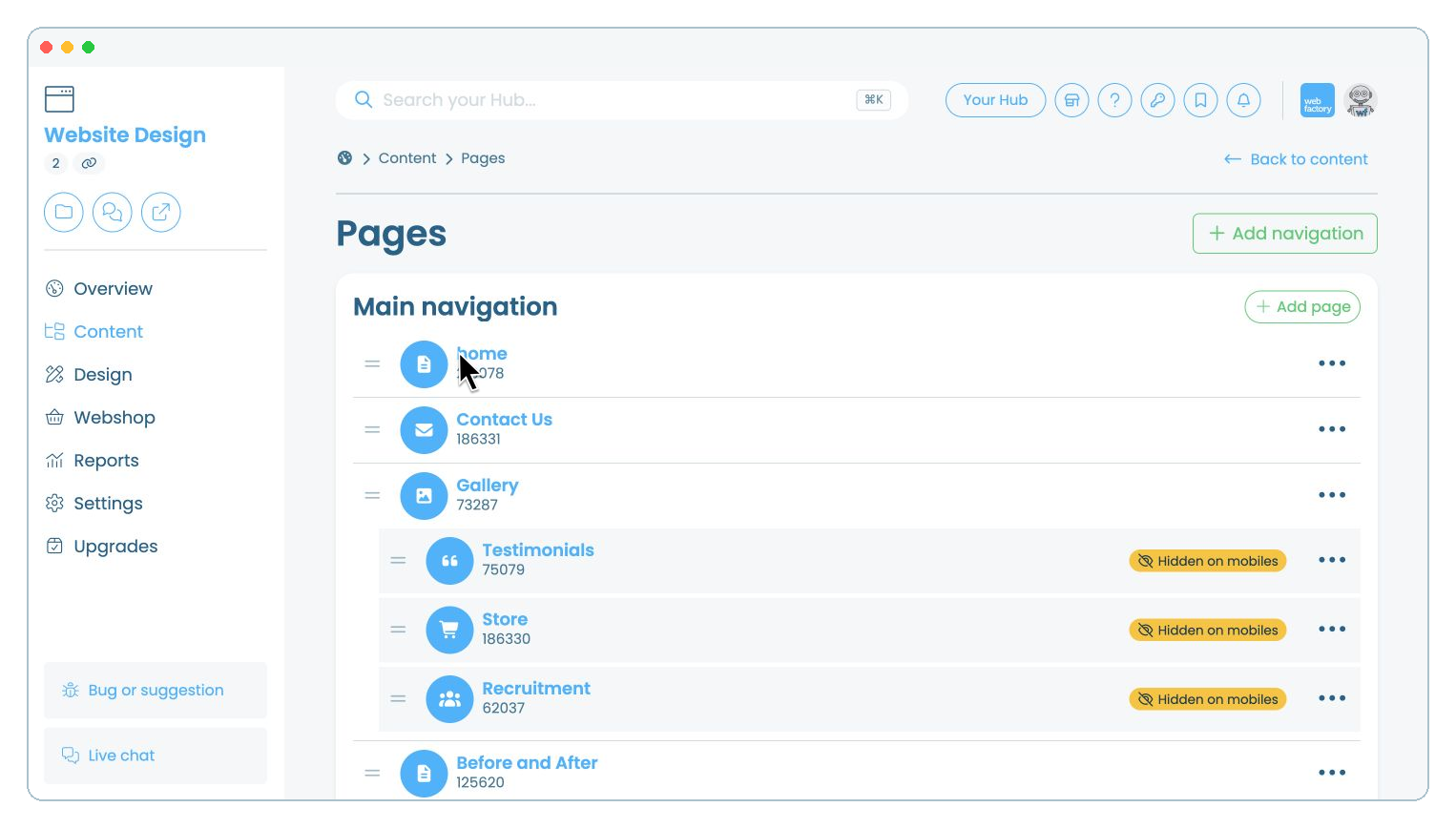
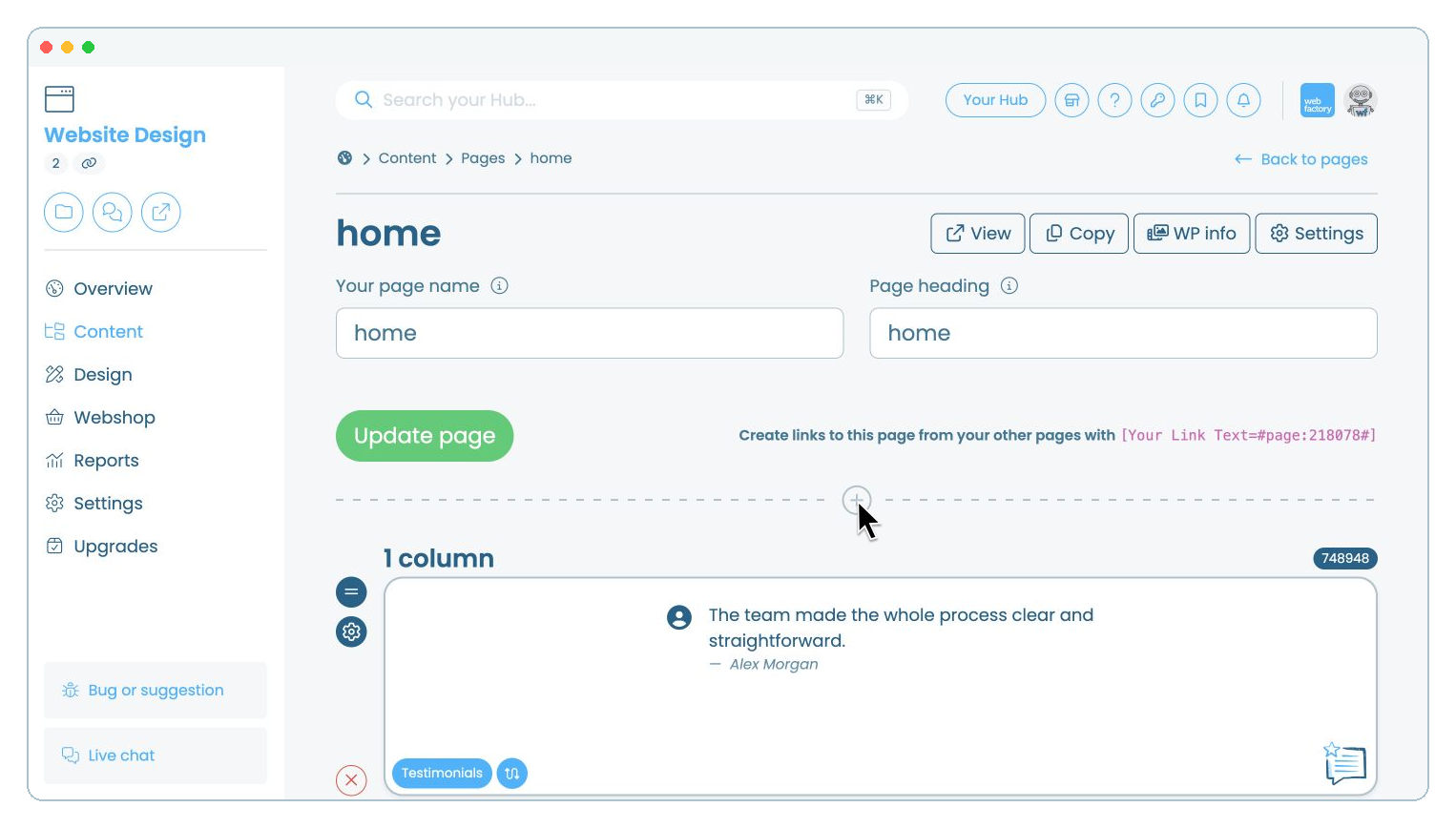
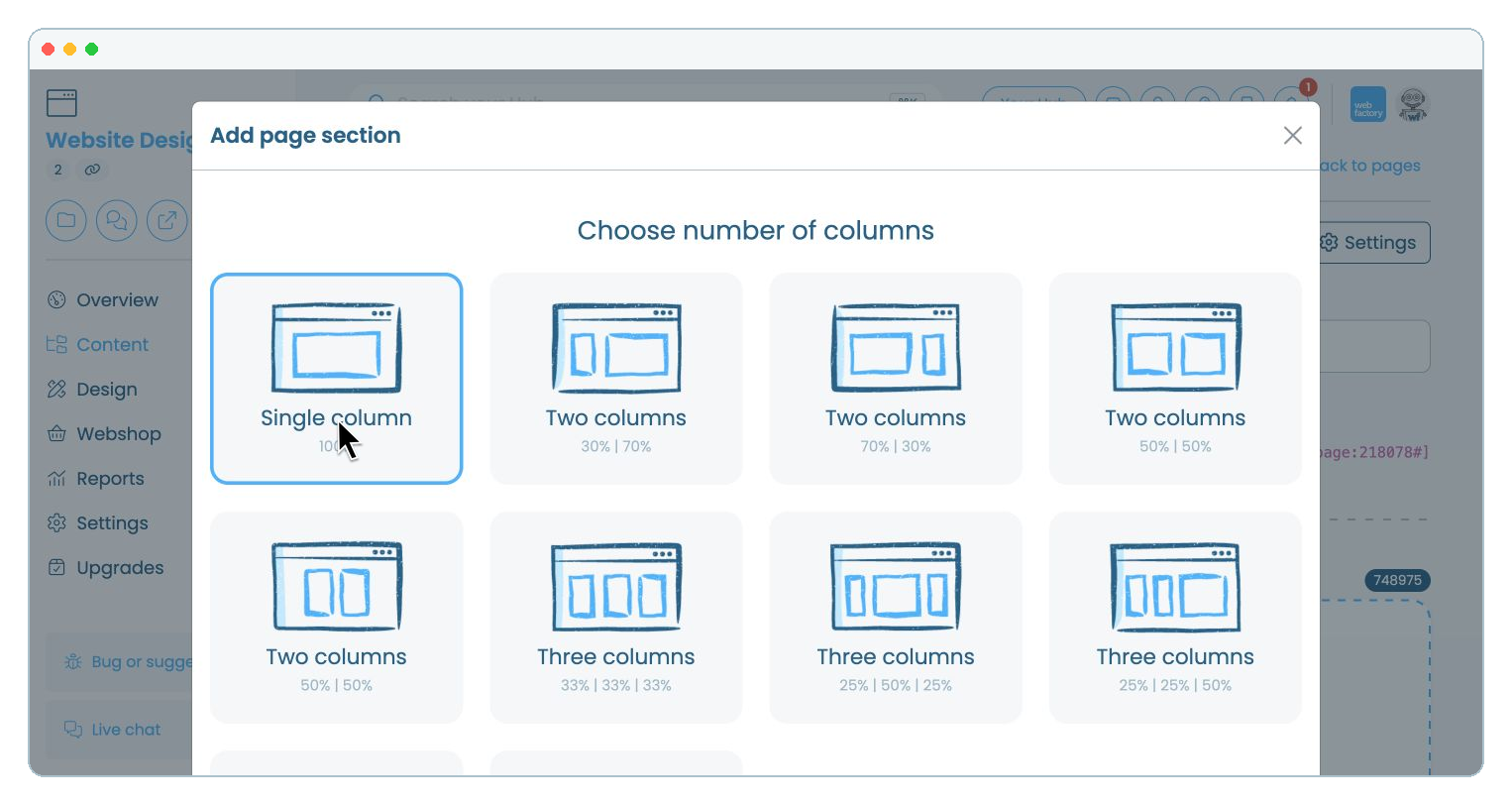
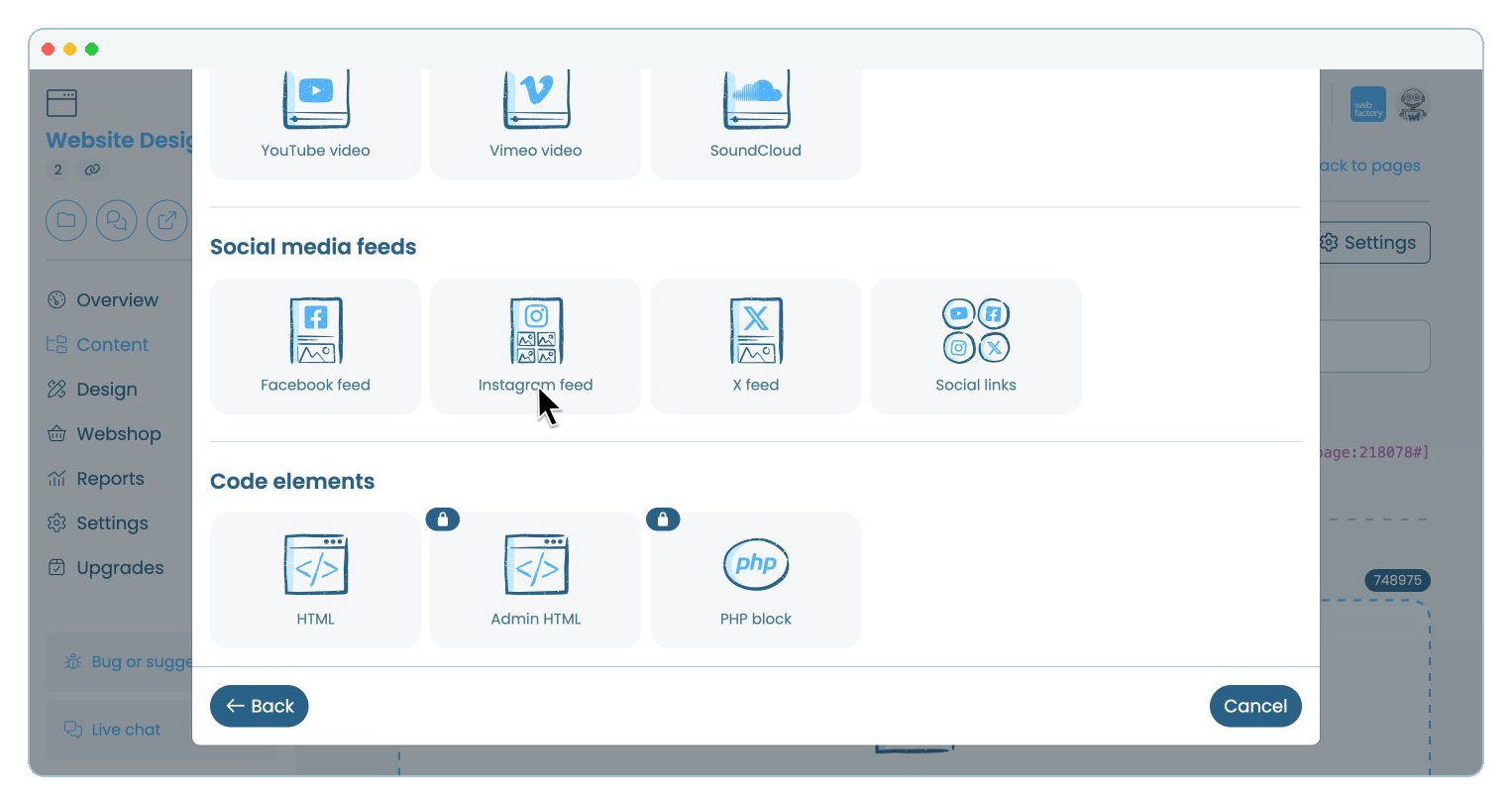
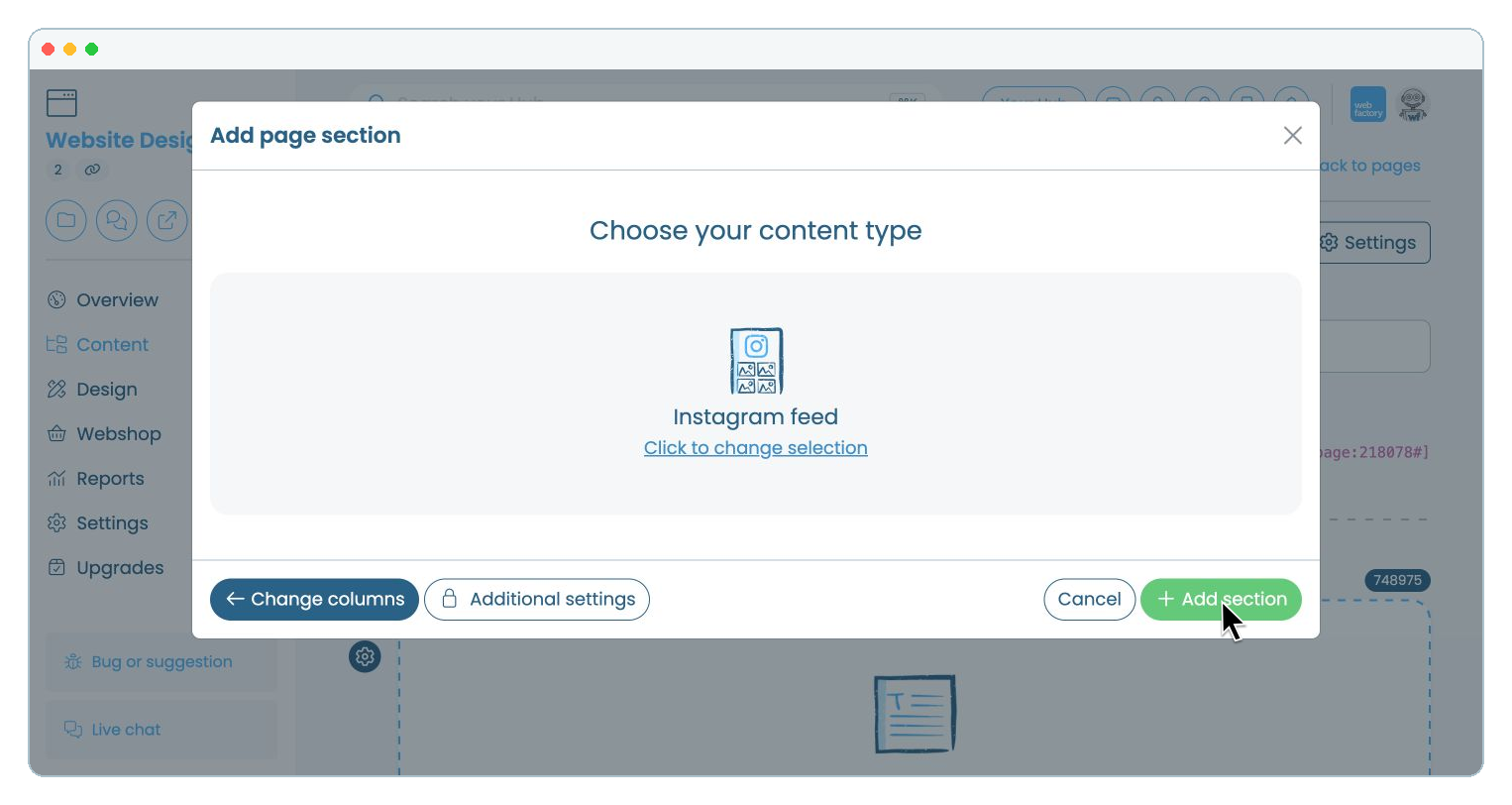
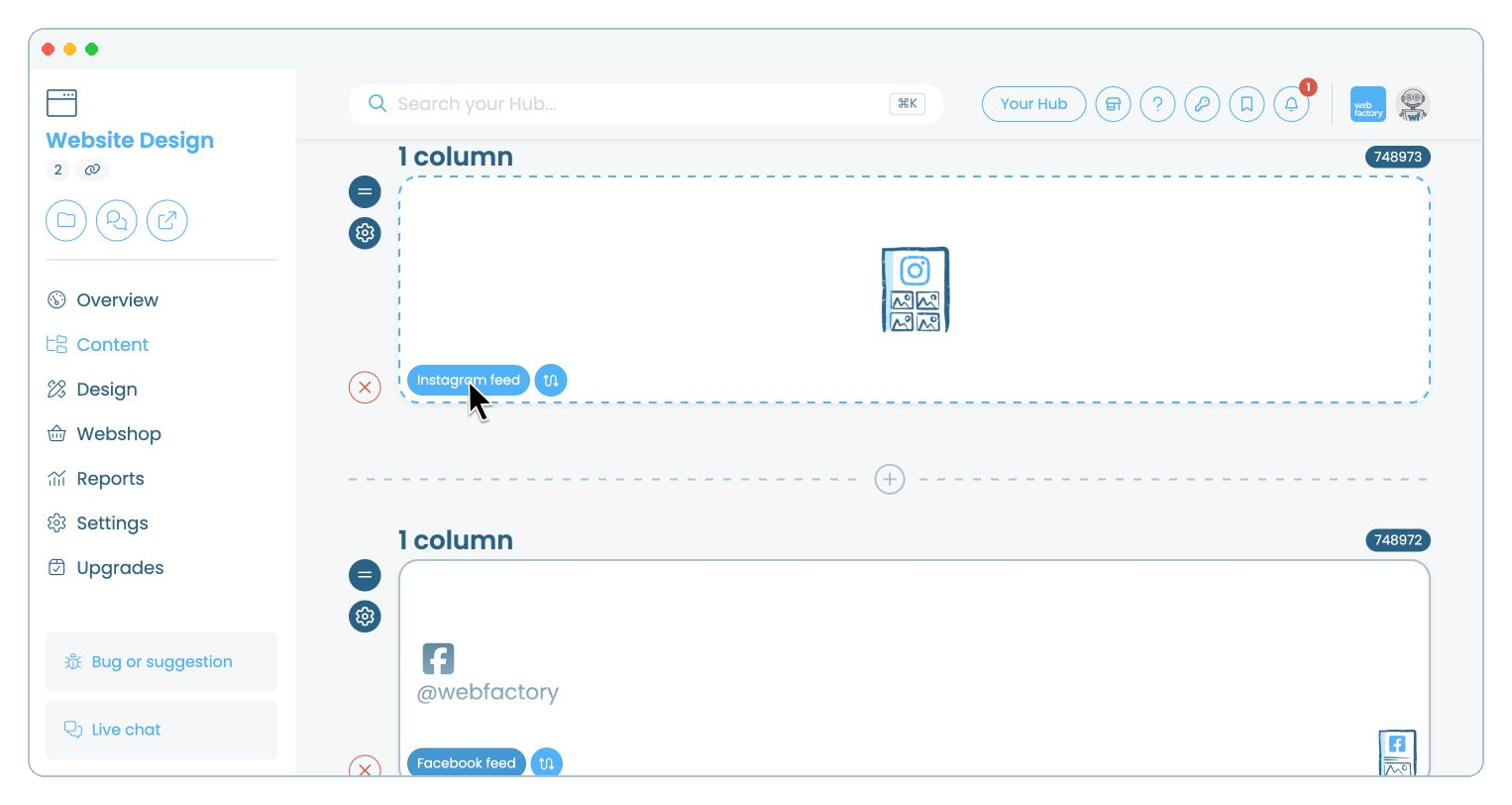
Step 9
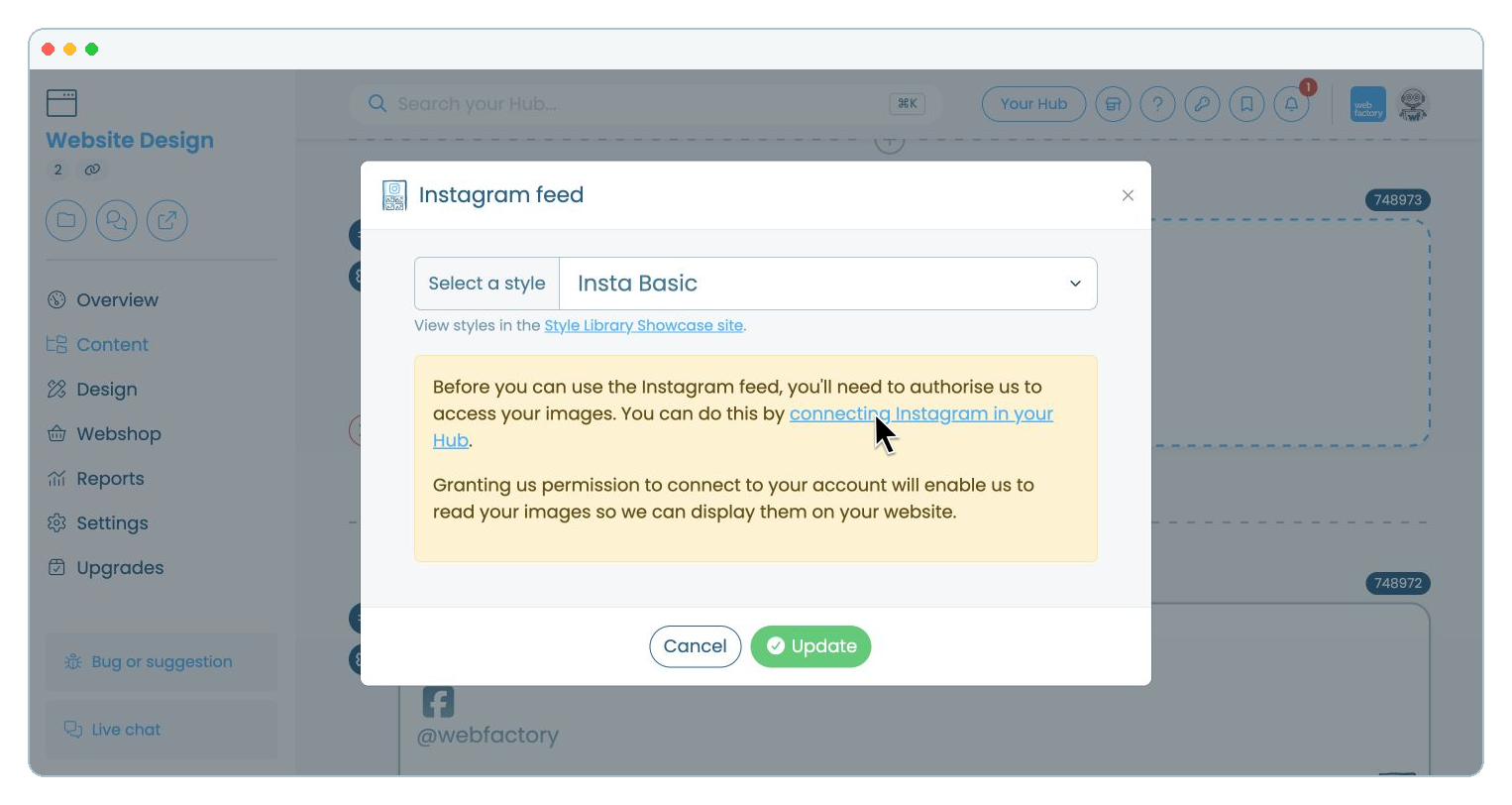
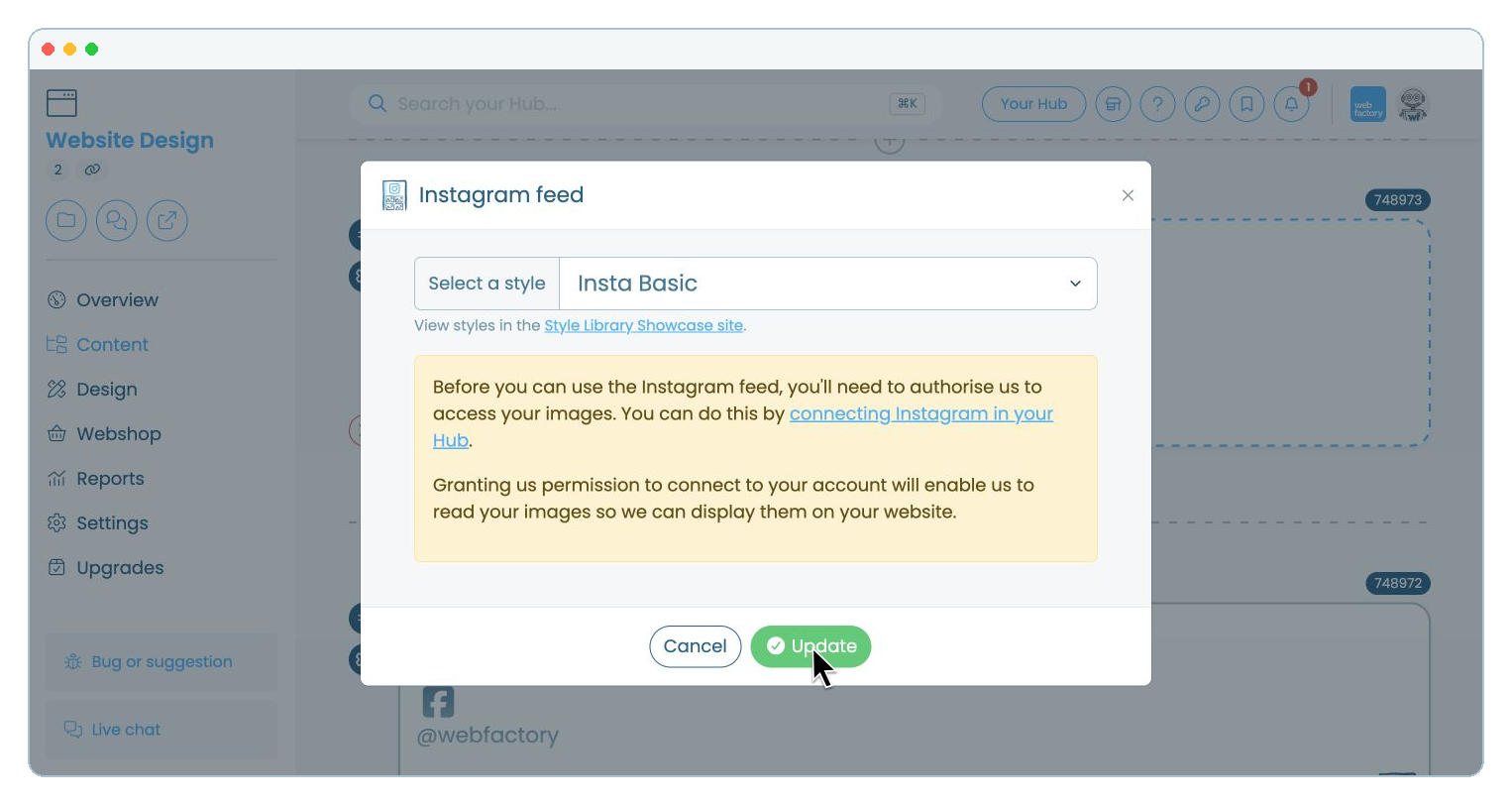
Select a style. If your account is not connected, click 'connecting Instagram in your Hub' and follow the on-screen instructions to authorise access.
Related articles
- How to add a Facebook Feed to a website page
- How to add an X Feed to a website page
- How to connect your Instagram account to your website
- How to link your social media accounts to your website
- How to rearrange or modify section elements on your web pages
- How to reauthorise Instagram on your website
- How to revoke Instagram authorisation
- How to switch your personal Instagram account to a business account
- Introduction to page sections