How to add and manage product specifications
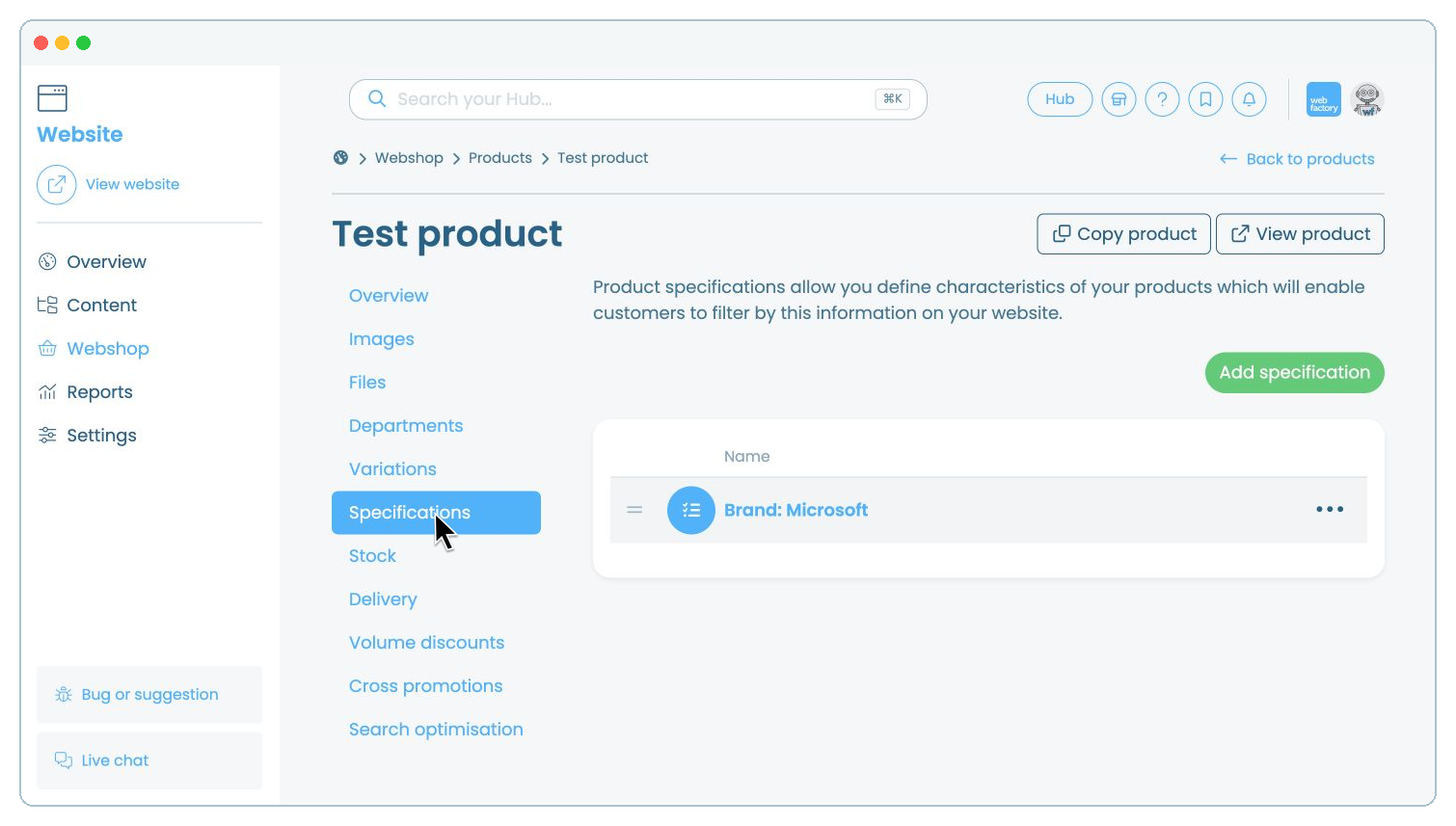
In this article, we'll guide you through adding and managing specifications for products in your Webshop. Specifications are fixed product characteristics, such as 'Brand: Microsoft', and can be used to filter products on your website.
Use variations instead for options customers can select, such as size or colour. For an overview of all product settings, see introduction to product details.
To configure filters that use specifications, see how to add product filters to your Webshop.
In the website editor, go to 'Webshop'.
Click 'Products'.
Select the product you want to update.
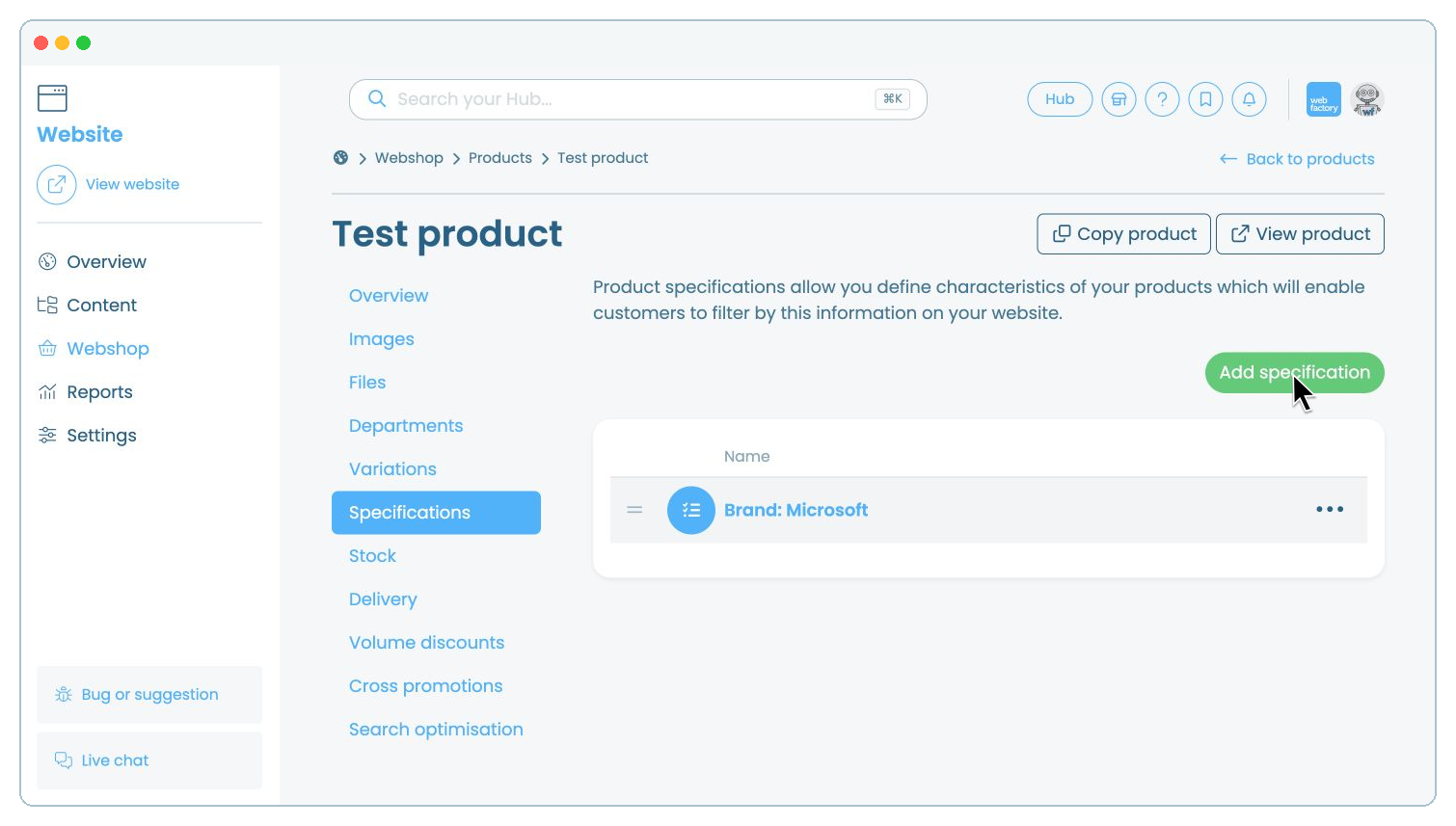
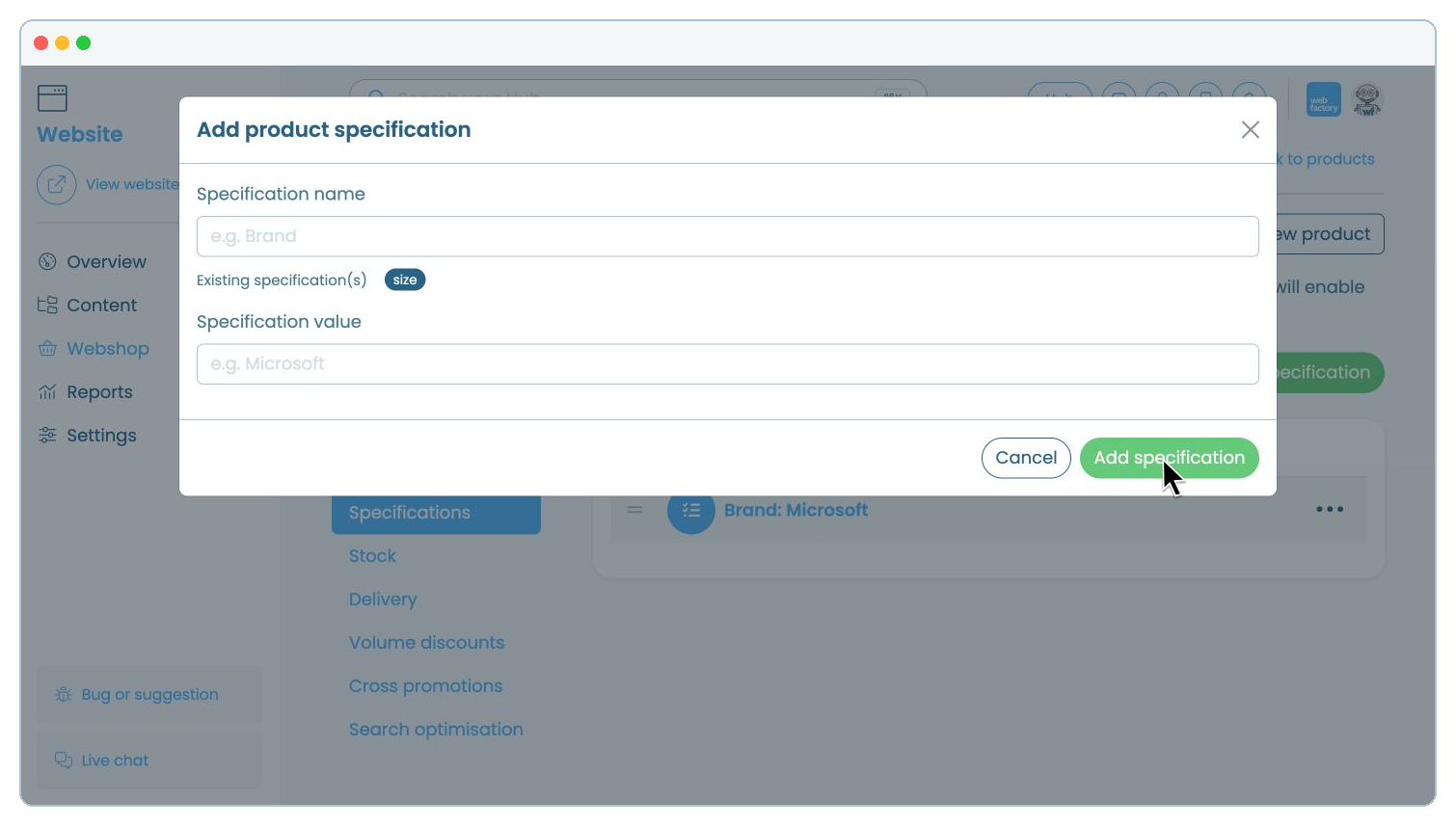
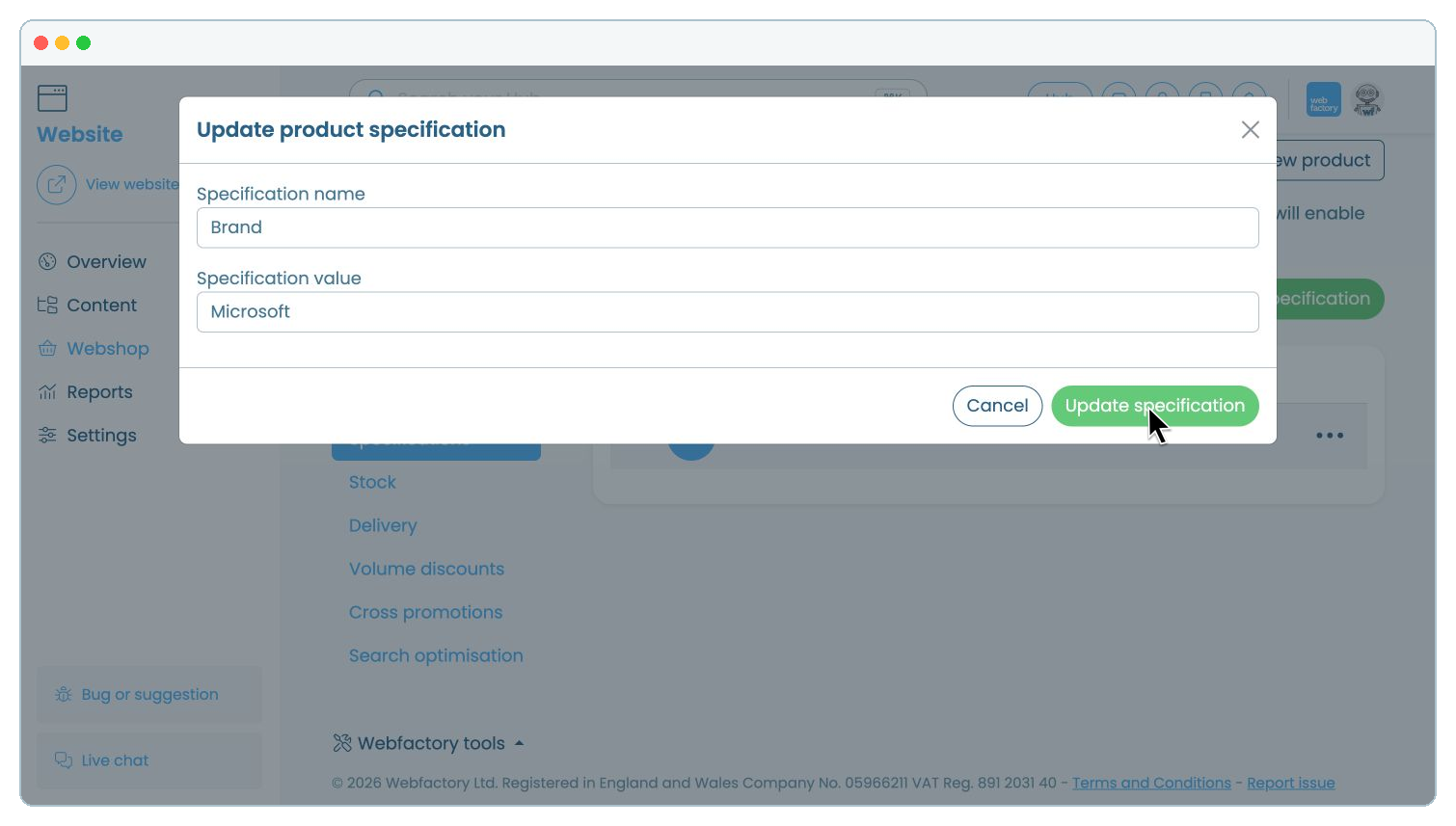
Enter the 'Specification name' and 'Specification value'.
From 'Webshop', open 'Products'.
Select the product and click 'Specifications'.
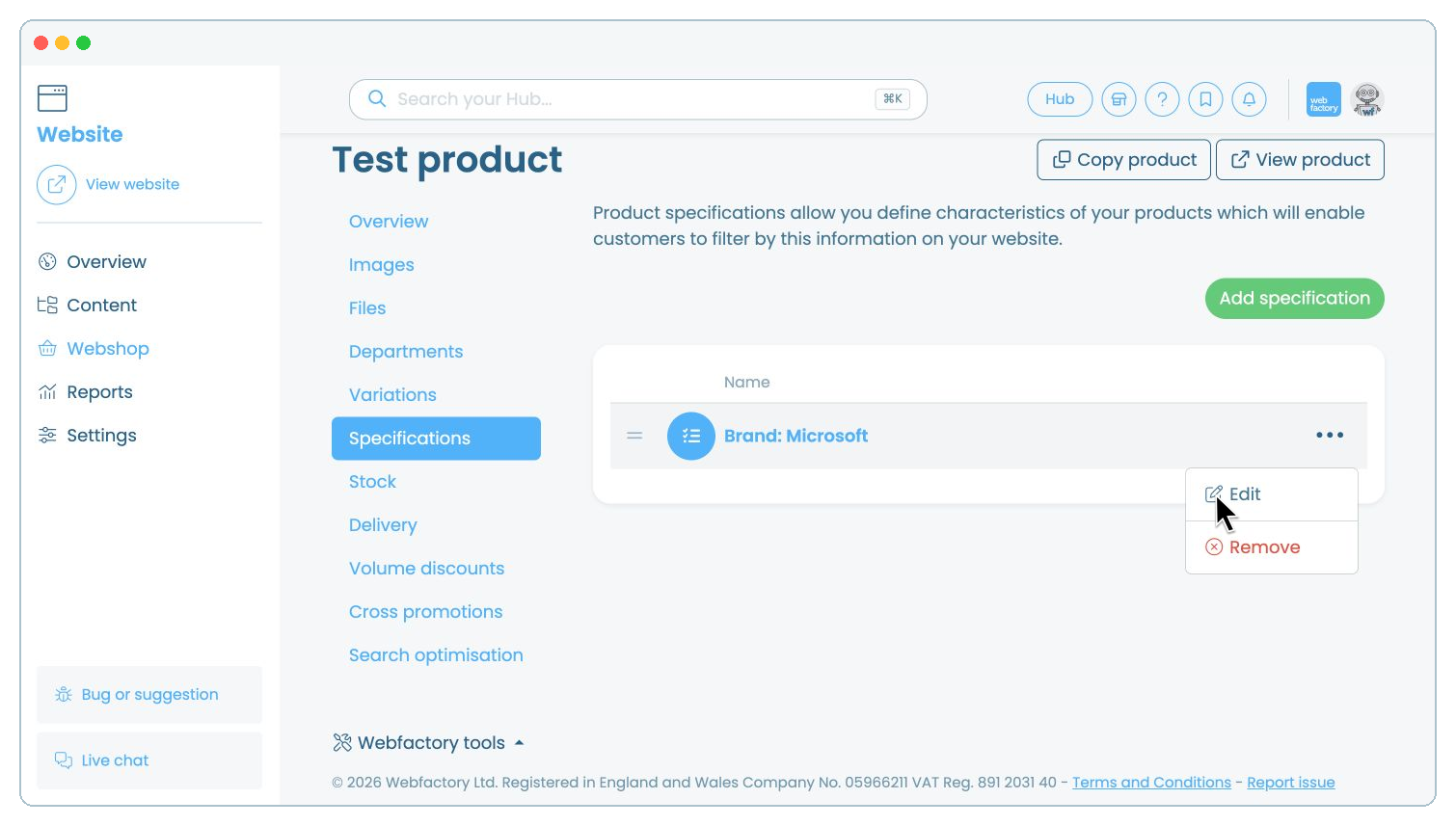
Update the 'Specification name' or 'Specification value'.
Open the product's 'Specifications' tab.
Open the three-dot menu beside the specification.
Click 'Remove'.
Open the product's 'Specifications' tab.
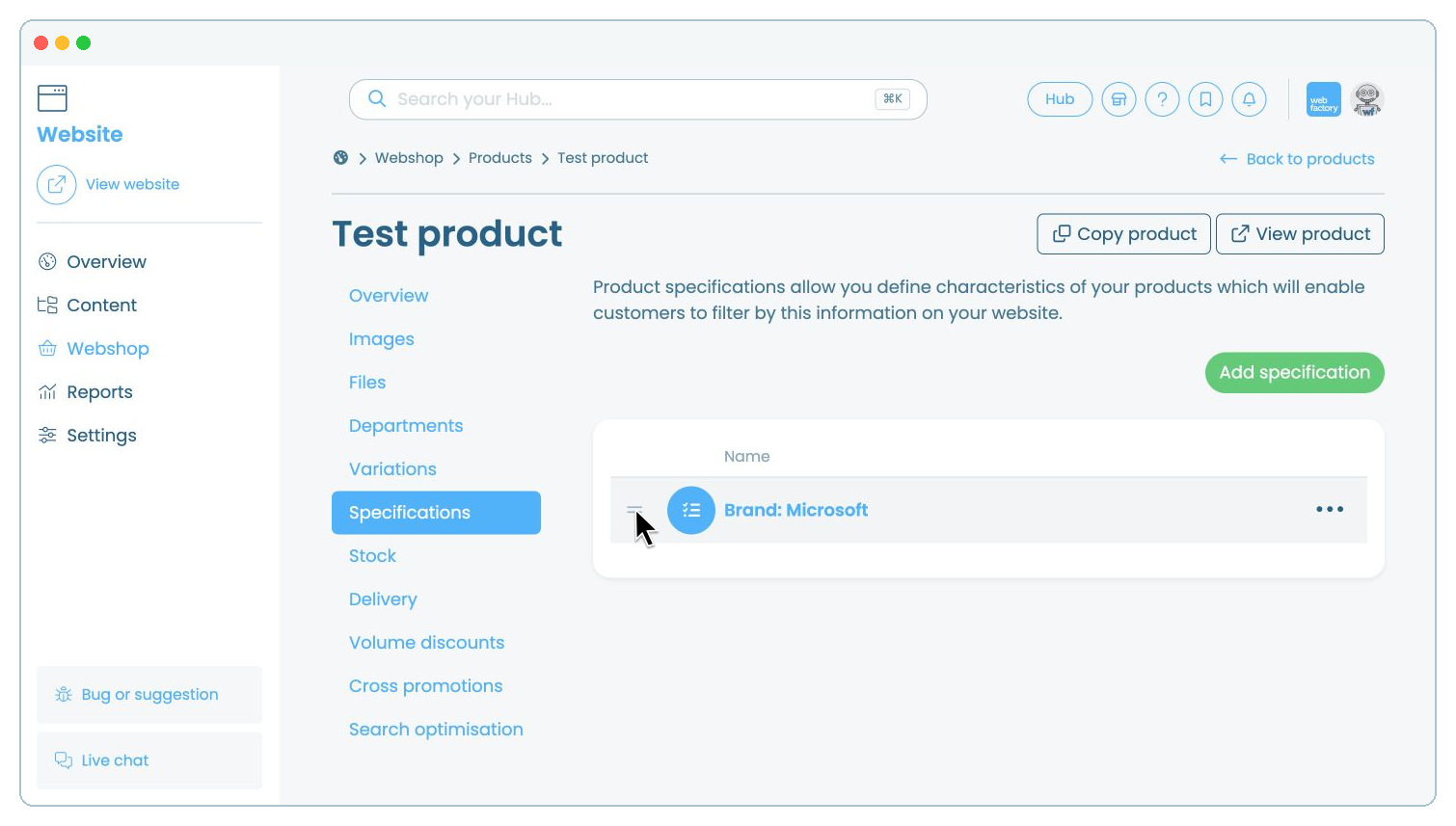
Move the specification to the required position.