How to add social media links to a website page
In this article, we'll guide you through adding social media links to a website page and customising how they appear.
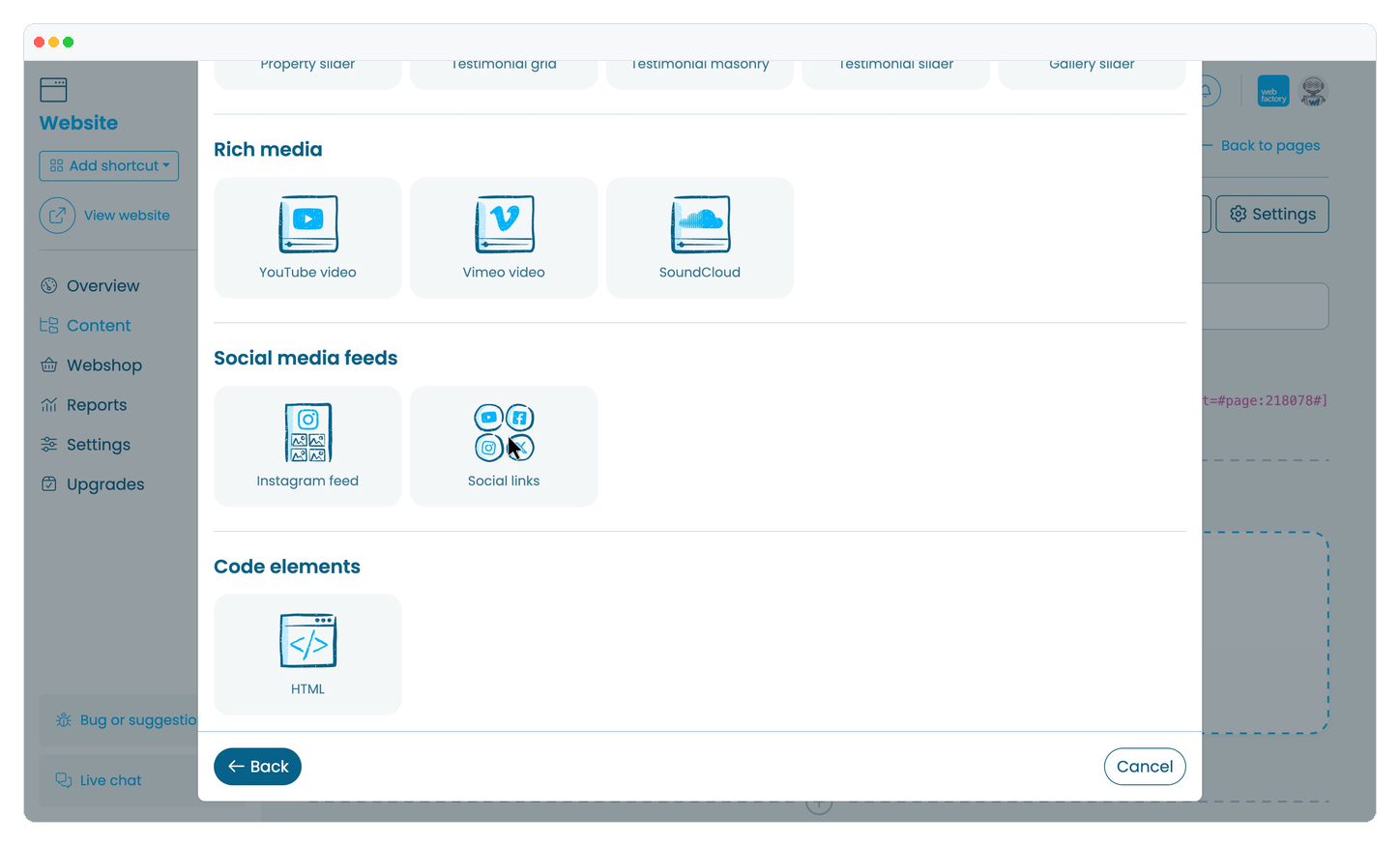
The 'Social links' element displays the icons for the social media accounts you have added in your website's 'Social media' settings. If you have not added your accounts yet, follow How to link your social media accounts to your website.
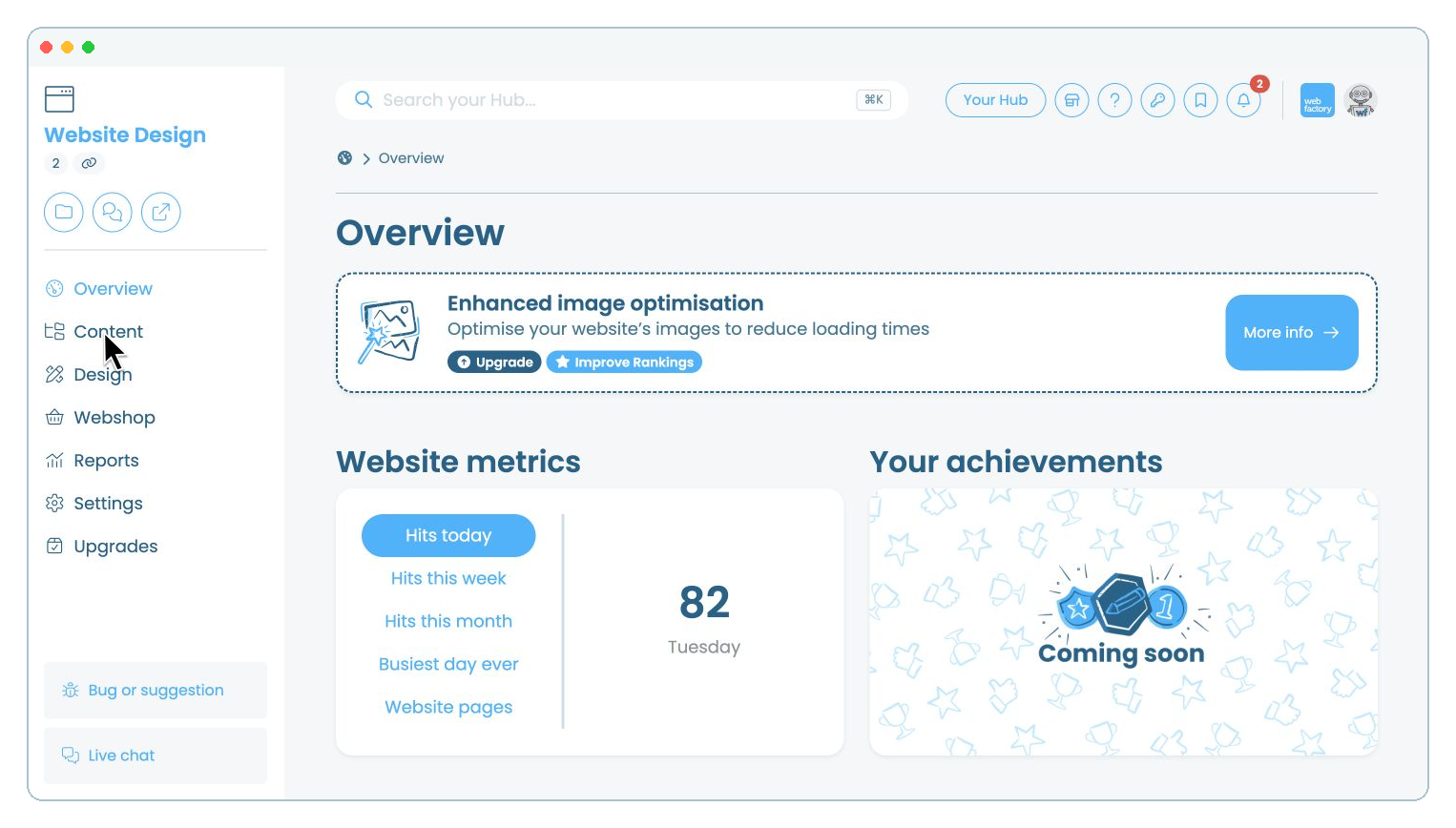
Step 3
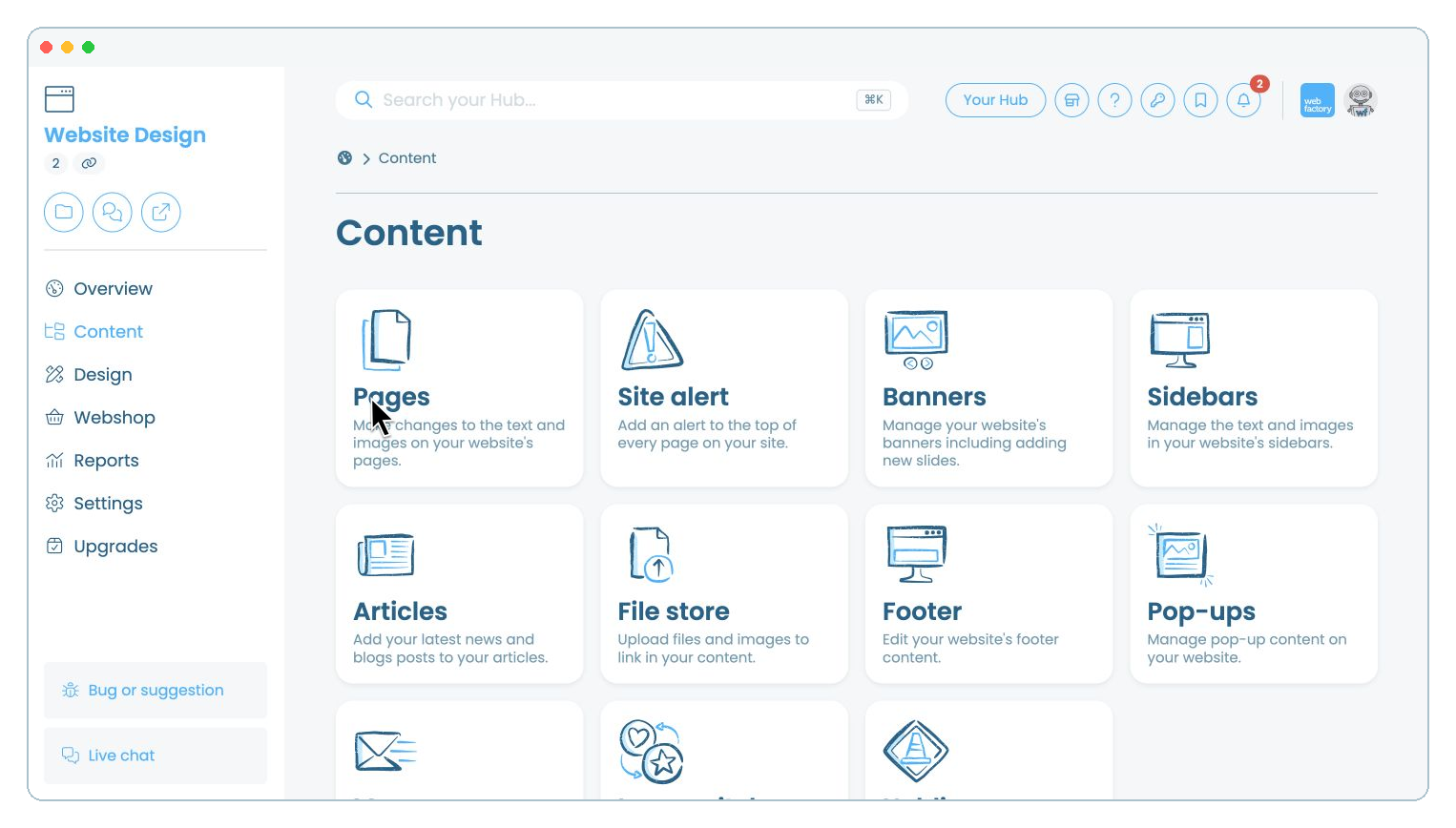
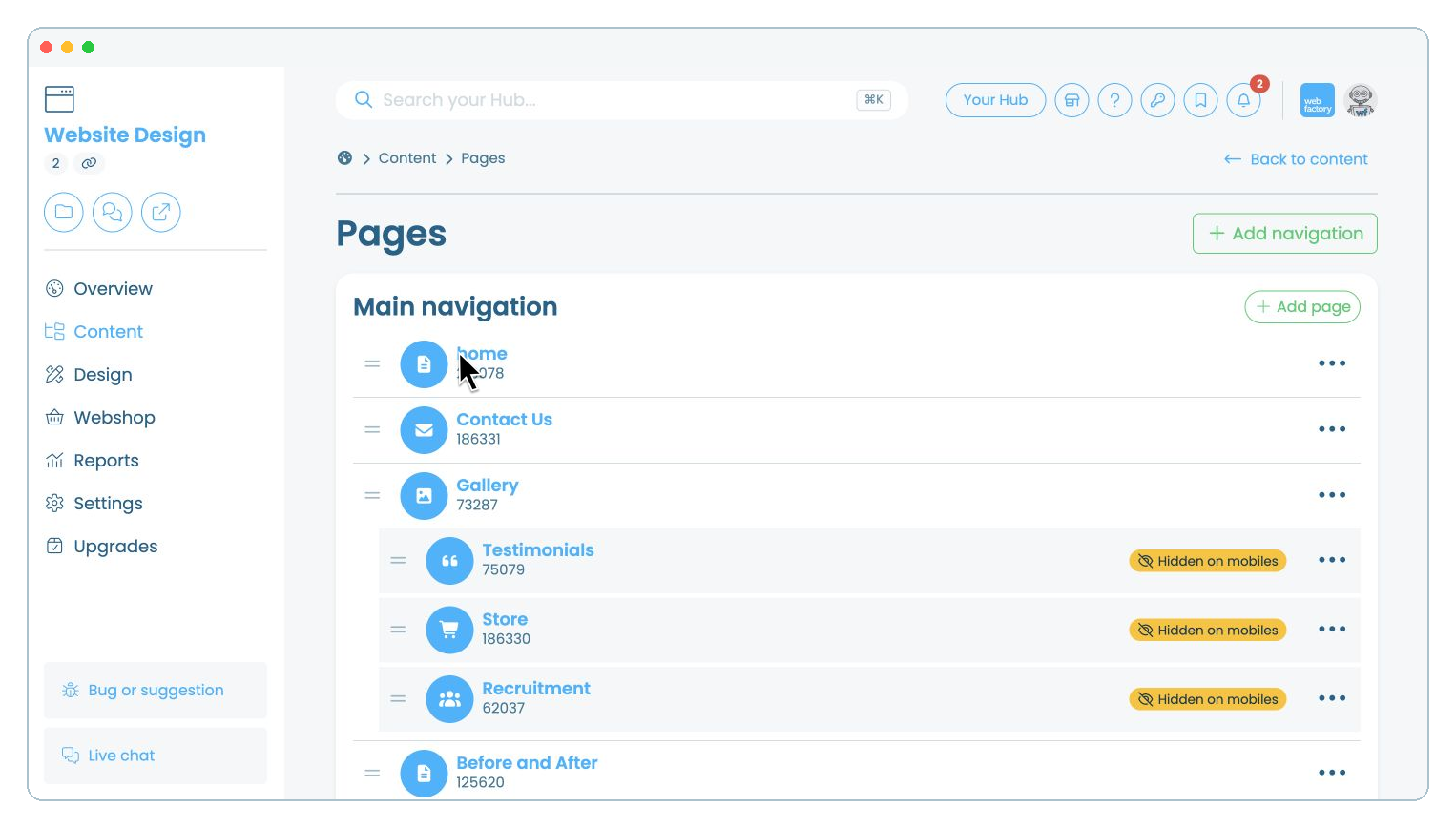
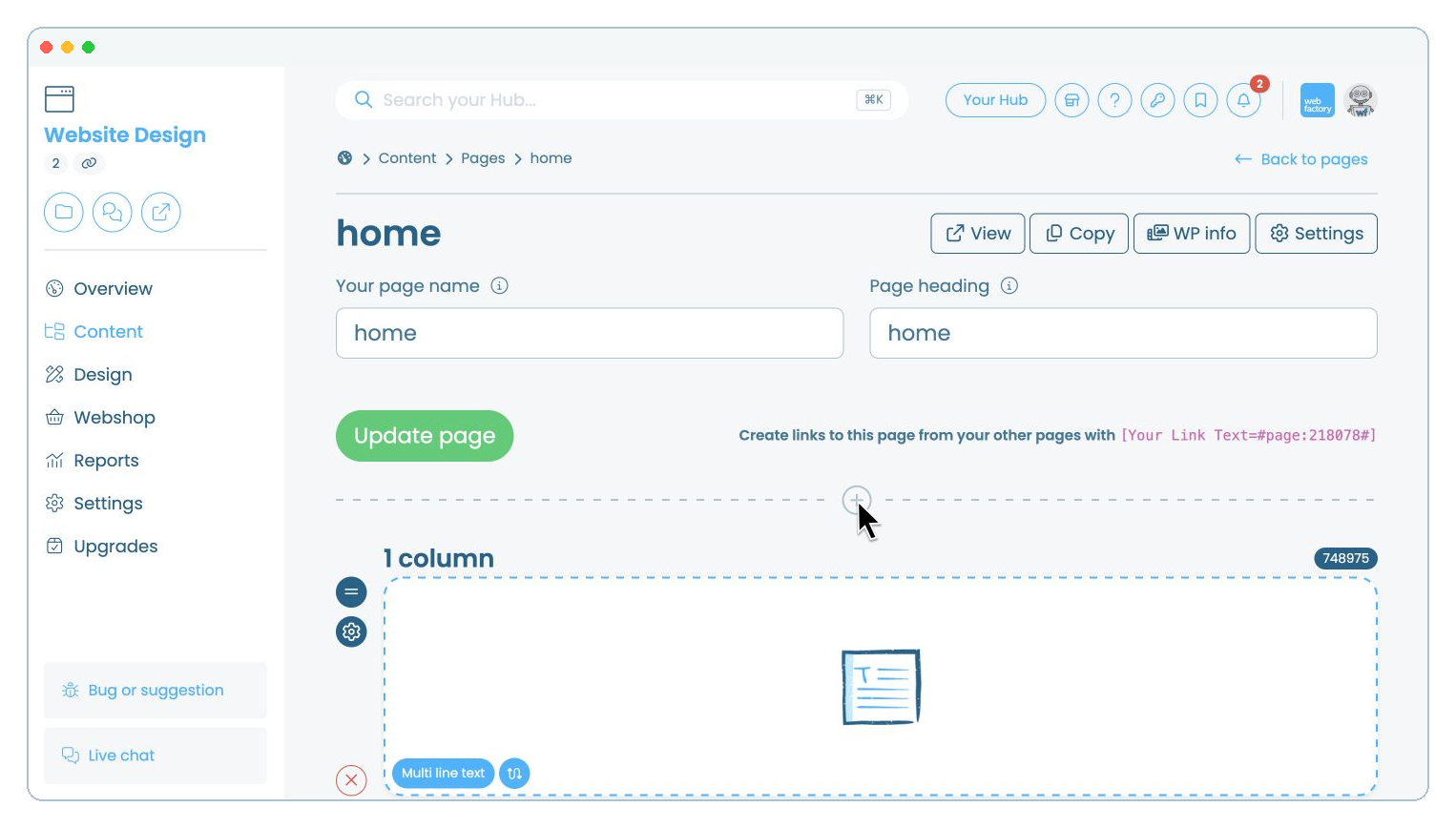
Click the name of the page where you want to add the social media links, for example, 'home'.
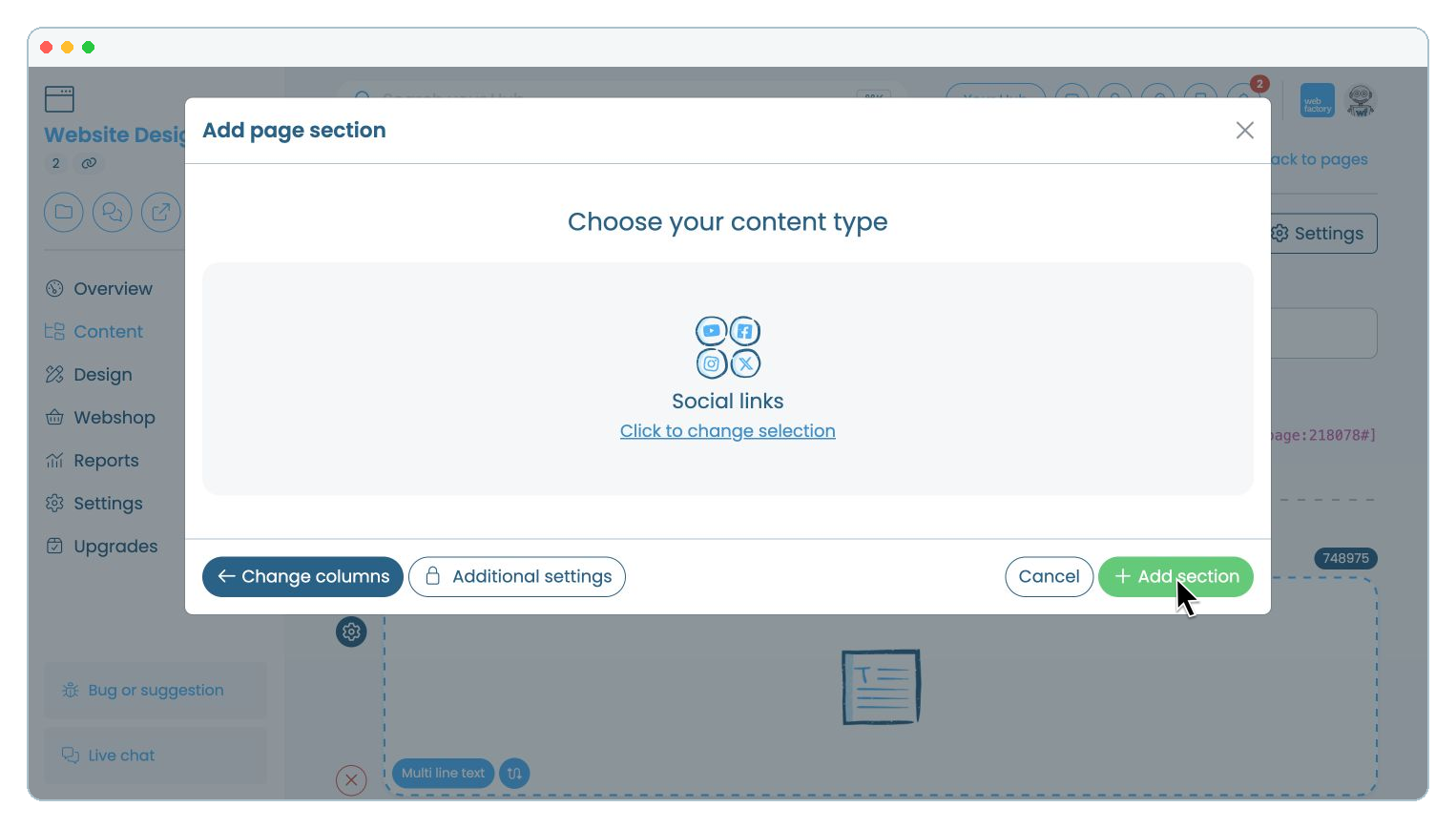
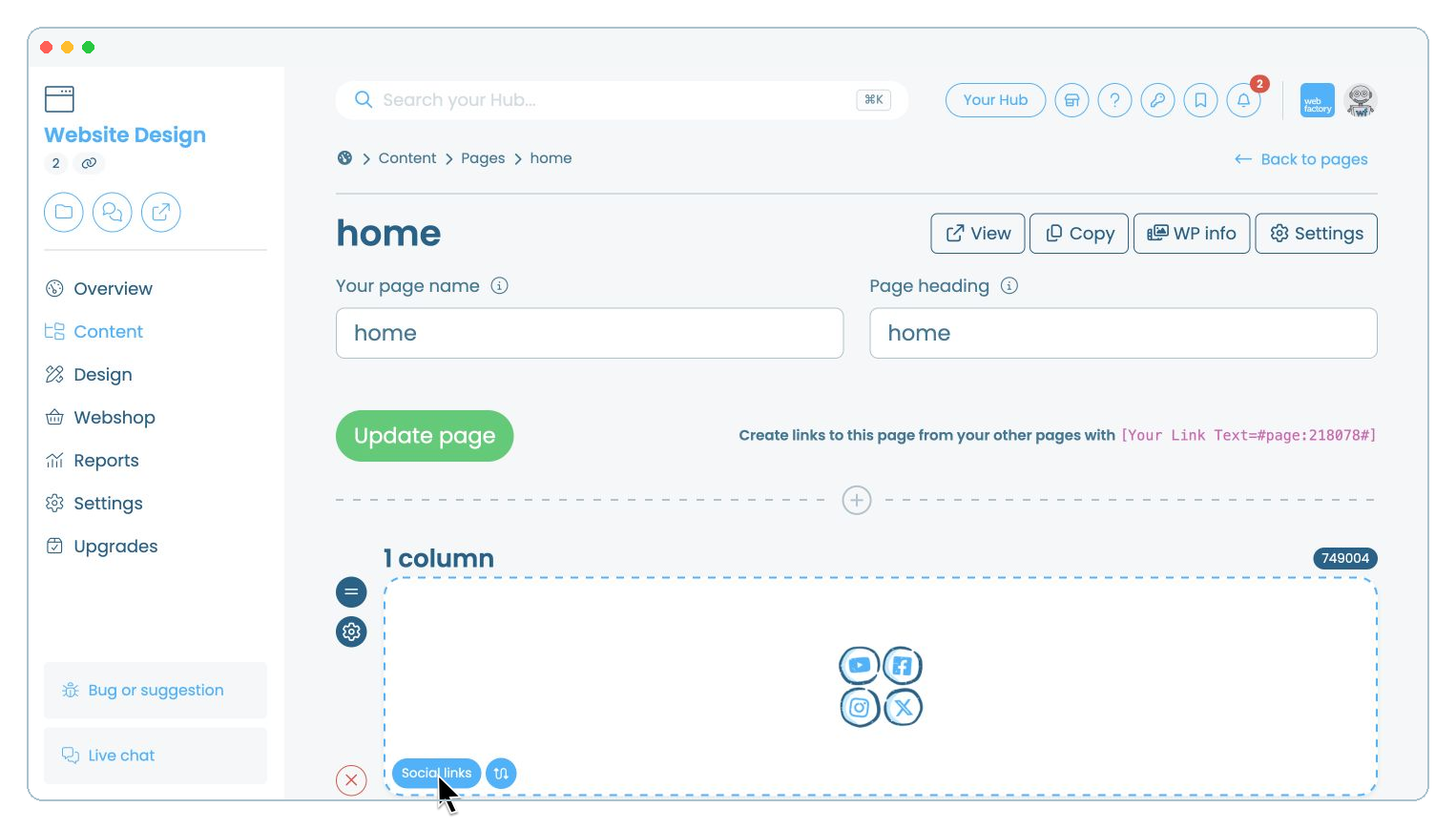
Step 9
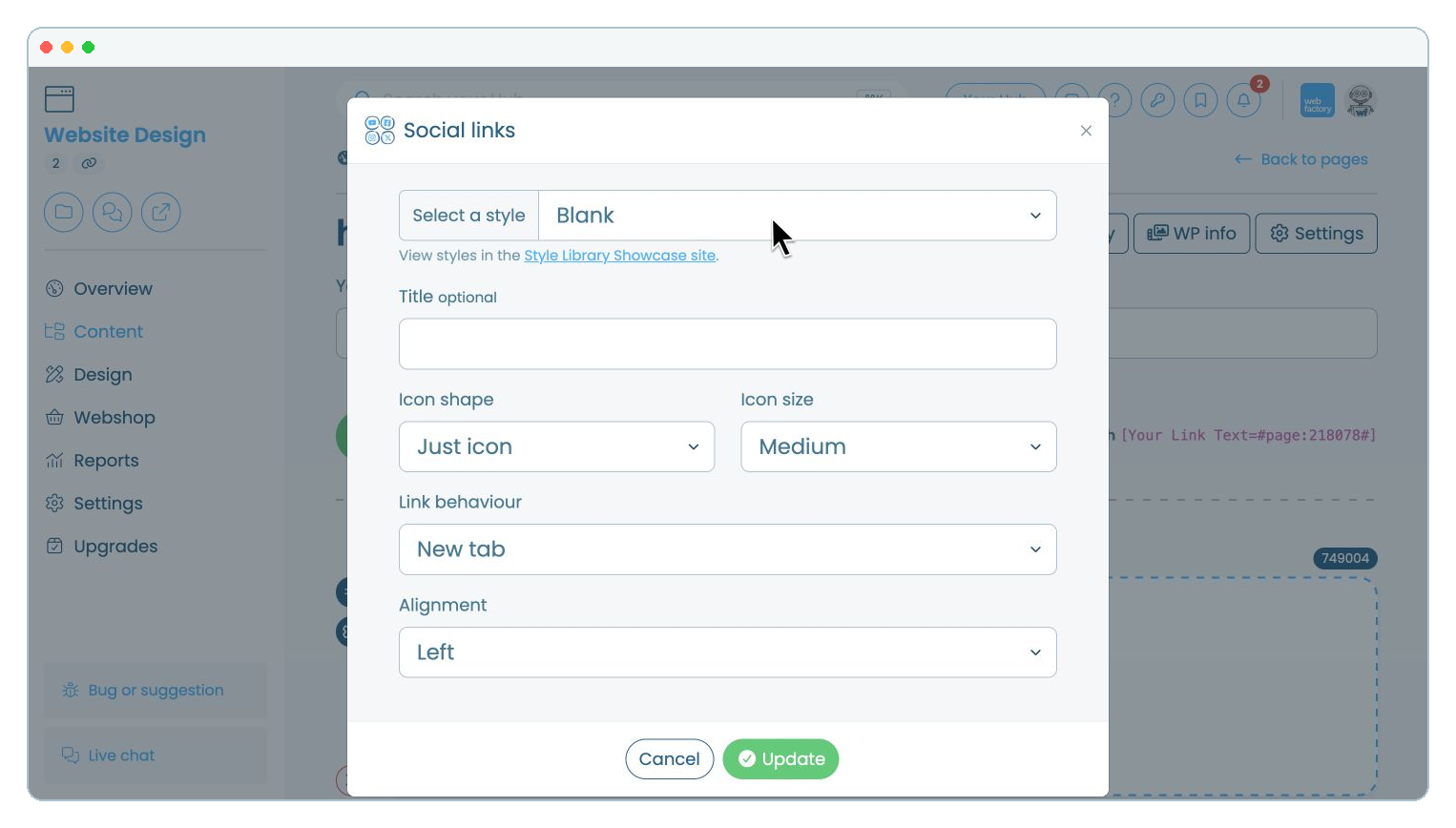
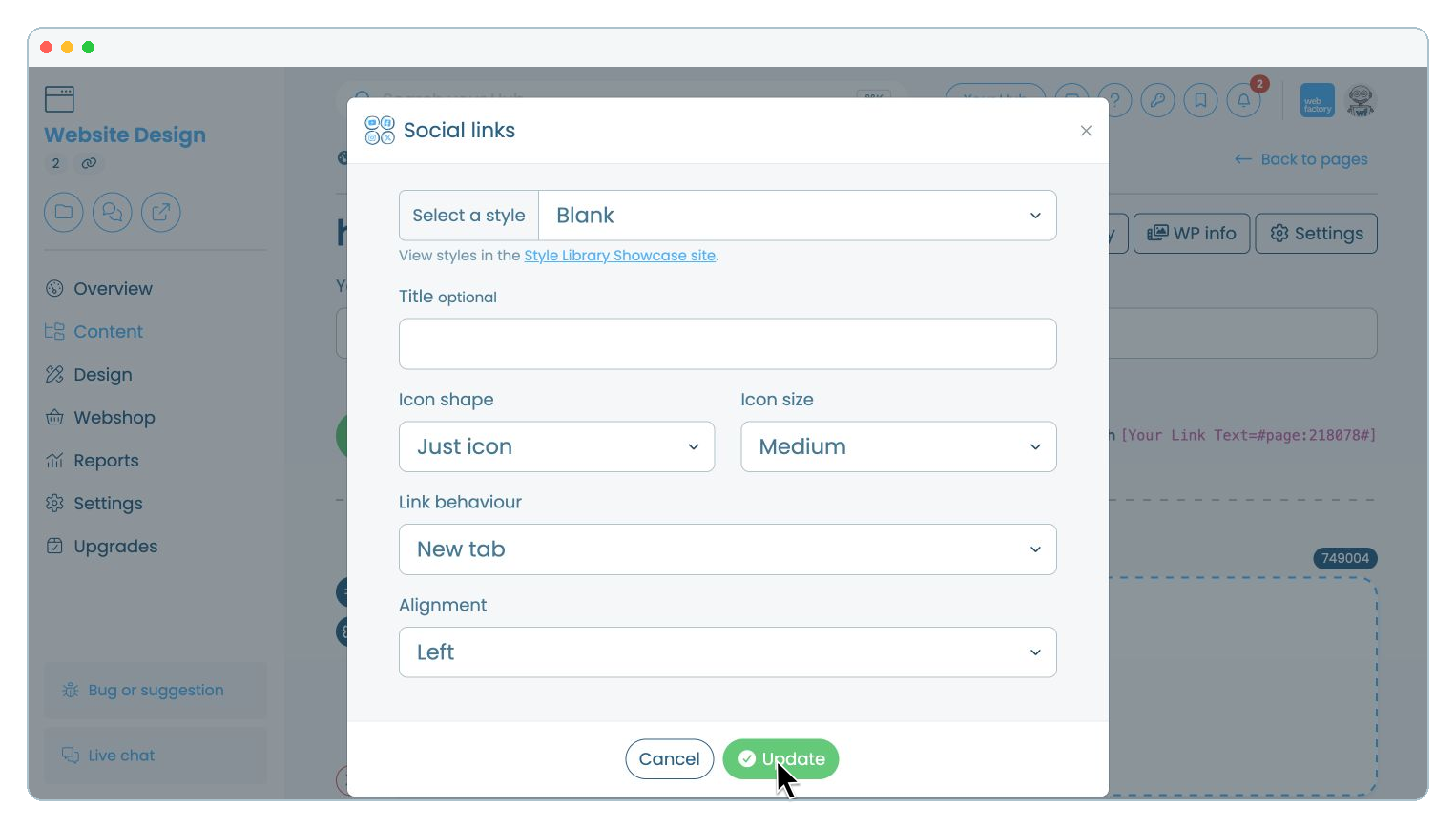
Choose an optional title, style, icon shape, icon size, link behaviour and alignment.