How to switch between your different logos or themed logos
In this article, we'll guide you through the steps of switching between logo and themed logos.
In the website editor, you can purchase additional versions of your logo tailored to a specific season, event, or cause. Once a themed logo is created, you can easily switch between it and your other versions using the logo switcher.
In the website editor, go to 'Content'.
Select 'Logo switcher'.
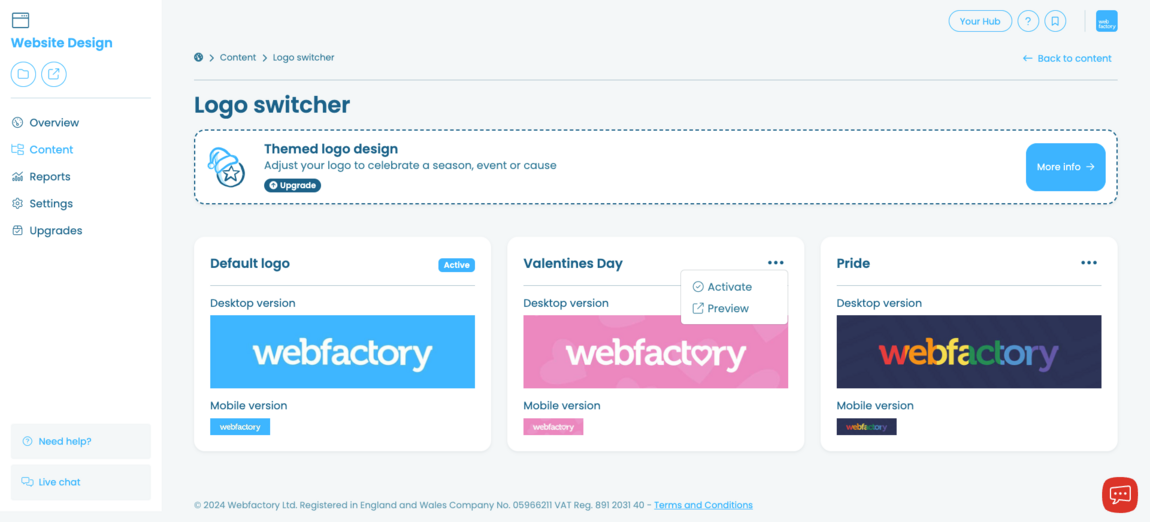
Find the logo you wish to display and click on the icon.
A dialogue box will appear, select 'Activate'.
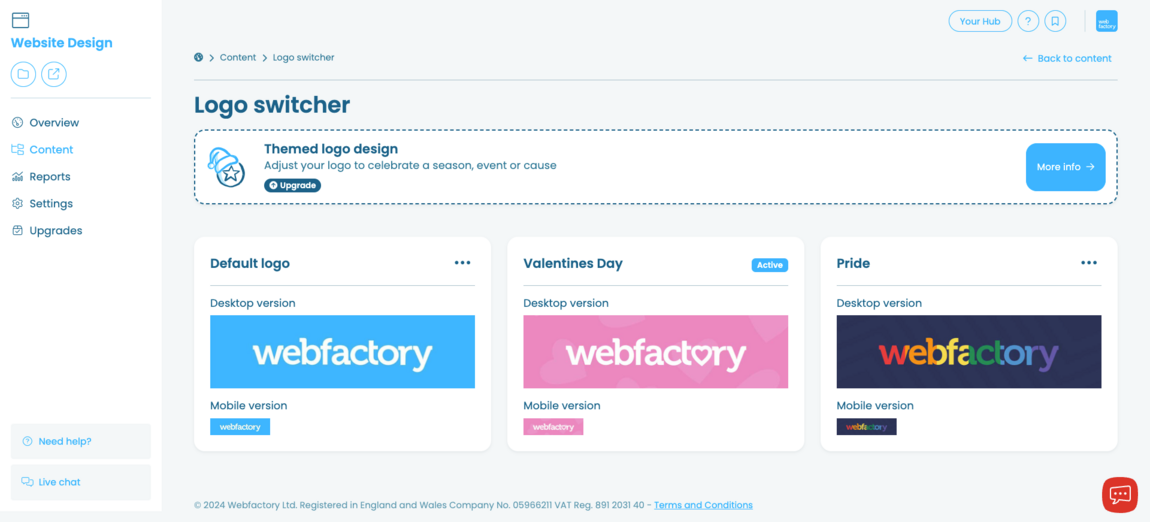
The logo should now be marked as 'Active'.
The new logo will now appear on your website.
The image below shows which logo is currently active on your website.
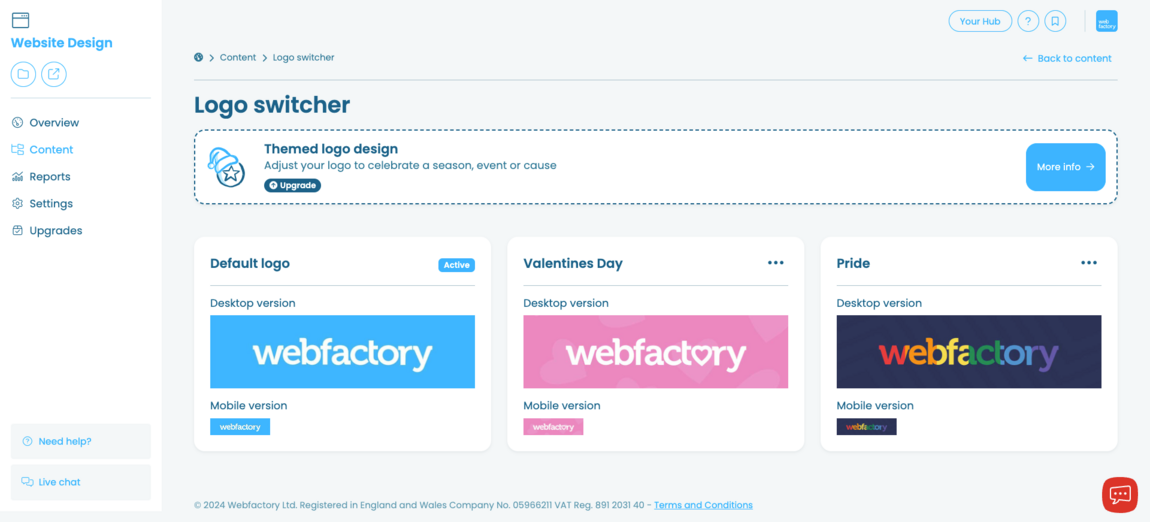
This example shows the process of switching logo.
This image shows the newly activated logo that will appear on your website.
You can switch between your logo versions as often as you like.