How to link internal pages together
In this article, we'll guide you through the different ways you can link pages within your website.
There are two methods you can use to create internal links:
Using a link within your content
You can copy the link for any page directly from the website editor. Each page displays its own link, as shown in the image below.
In the website editor, go to the 'Content' tab.
Navigate to the 'Pages' section.
Click on the page you wish to link.
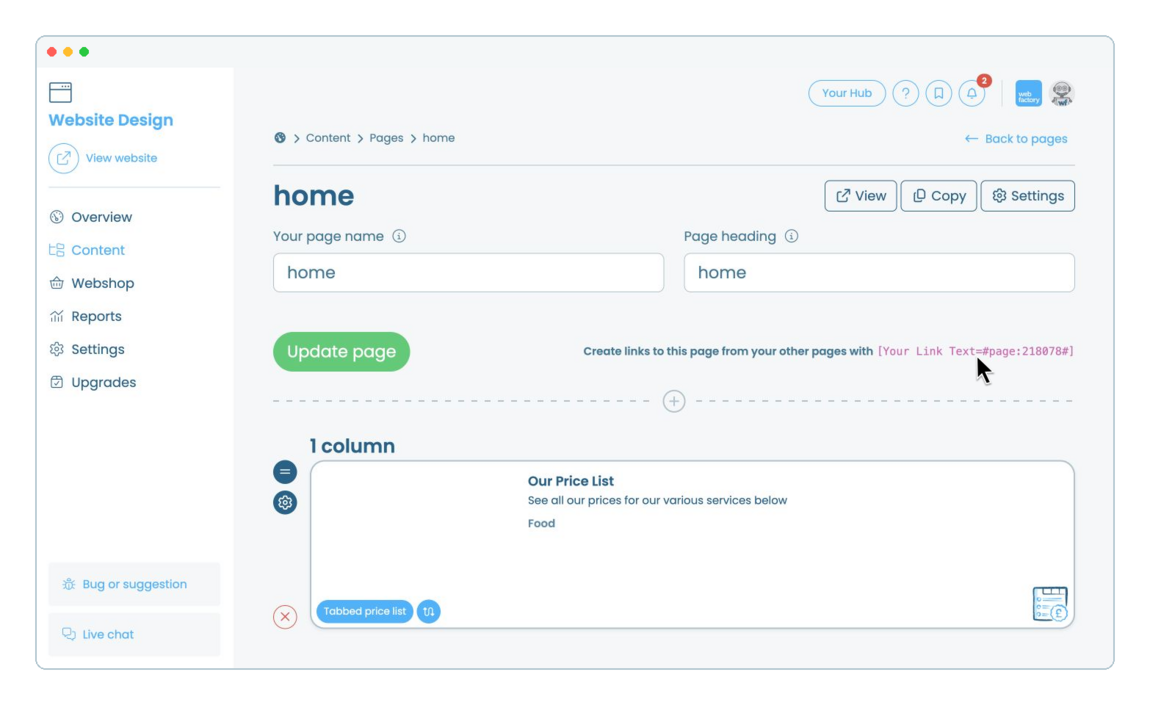
Open or create a new page you wish to add the page's link to.
Paste the link in the format [Your link Textlink numbers]. For example: [Find out more about our products11111111] will appear as Find out more about our products on your website.
Save the changes.
Via a button on a website page
You can also link to another page on your website by adding a button to a page section.
In the website editor, go to the 'Content' tab.
Navigate to the 'Pages' section.
Select the page you want to edit.
Click on the between the page sections where you'd like to add the button.
Choose the required number of columns for the new section.
Under 'General elements', select 'Button', then click 'Add section'.
Once the section has been added, locate it within the page and click on it to open the 'button editor'.
Enter the text you want to display on the button.
Click on the 'link' section and choose your preferred option, then click 'Update'.
The new button will now be visible on your website page. You can preview the changes by clicking 'View' on the web page.