How to edit, reorder and remove your shortcuts
You can change the order, details or availability of your personal shortcuts from Your shortcuts in the Hub.
Step 1
Select Shortcuts in the Hub header, then select Manage under Your shortcuts.
Step 2
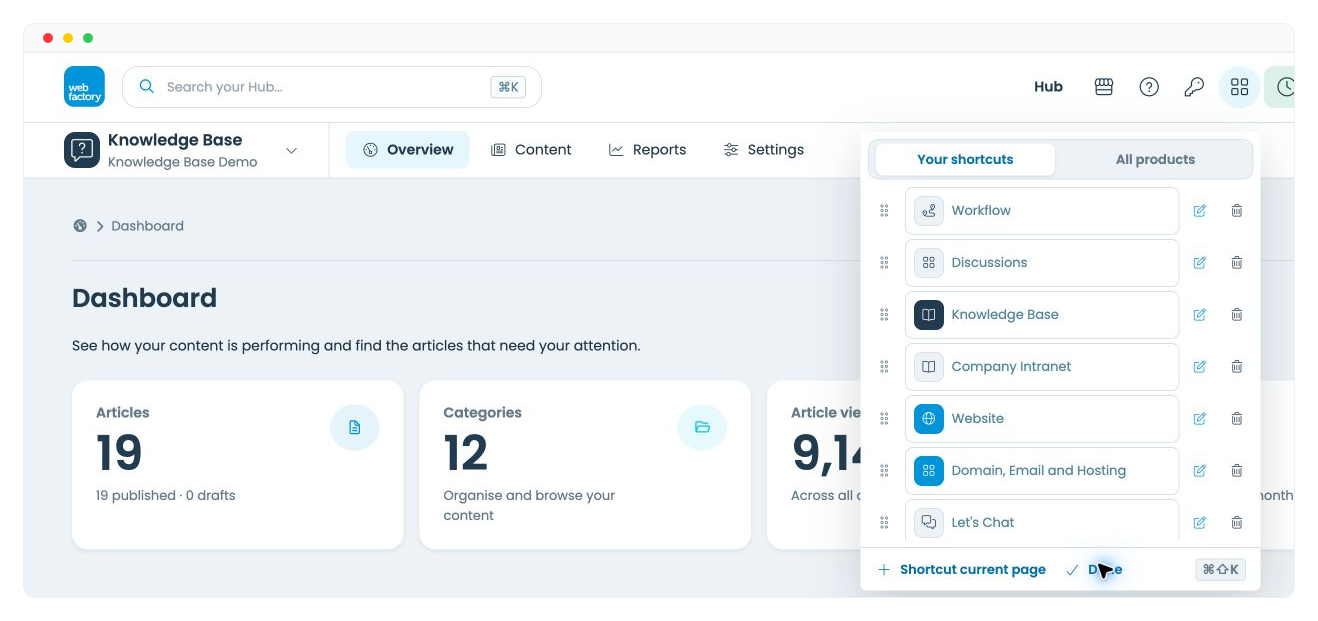
Drag the grip handle beside a shortcut to move it. The new order saves automatically. You can also focus the handle and press the up or down arrow key.
Step 3
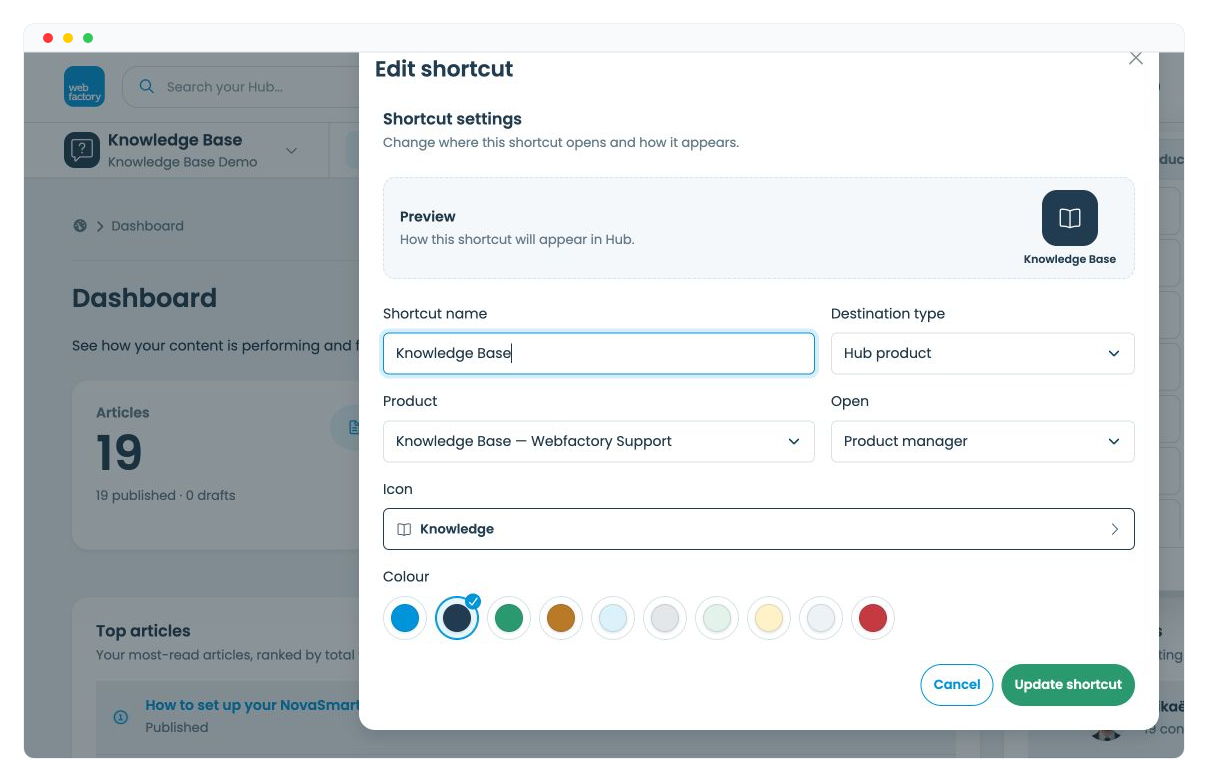
Select the Edit icon beside a shortcut. Change its name, destination, icon or colour, then select Update shortcut.
Step 4
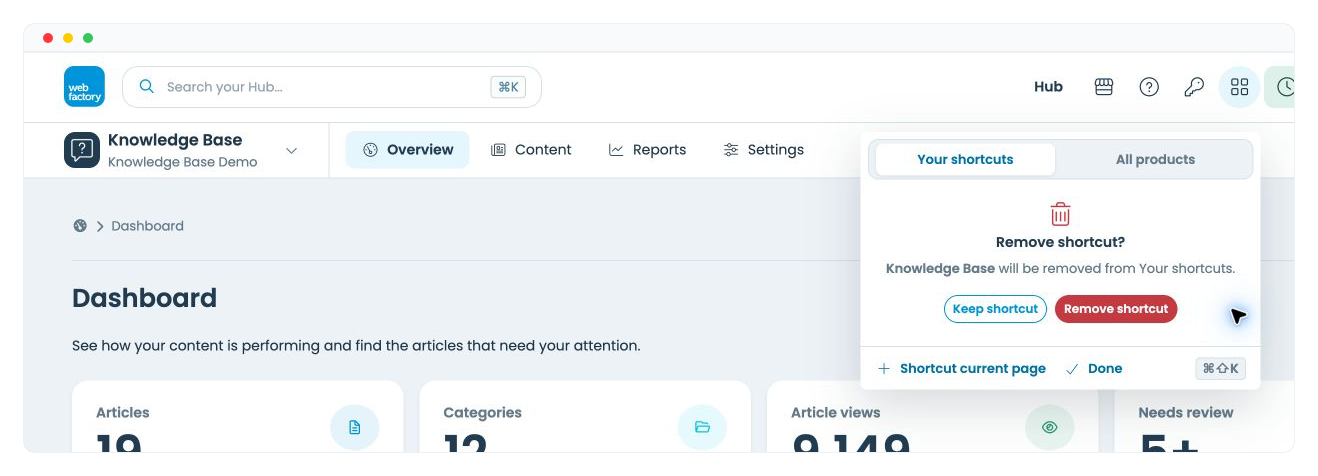
Select the Remove icon beside a shortcut, then select Remove shortcut to confirm. Select Done when you finish managing your shortcuts.