How to check your mailbox storage and free up space in Webmail
In this article, we'll guide you through checking how much mailbox storage you're using, finding the folders taking up the most space and freeing up storage in Webmail.
This article focuses on checking and managing your storage. If you already know which folder you want to clear, see how to empty a folder in Webmail.
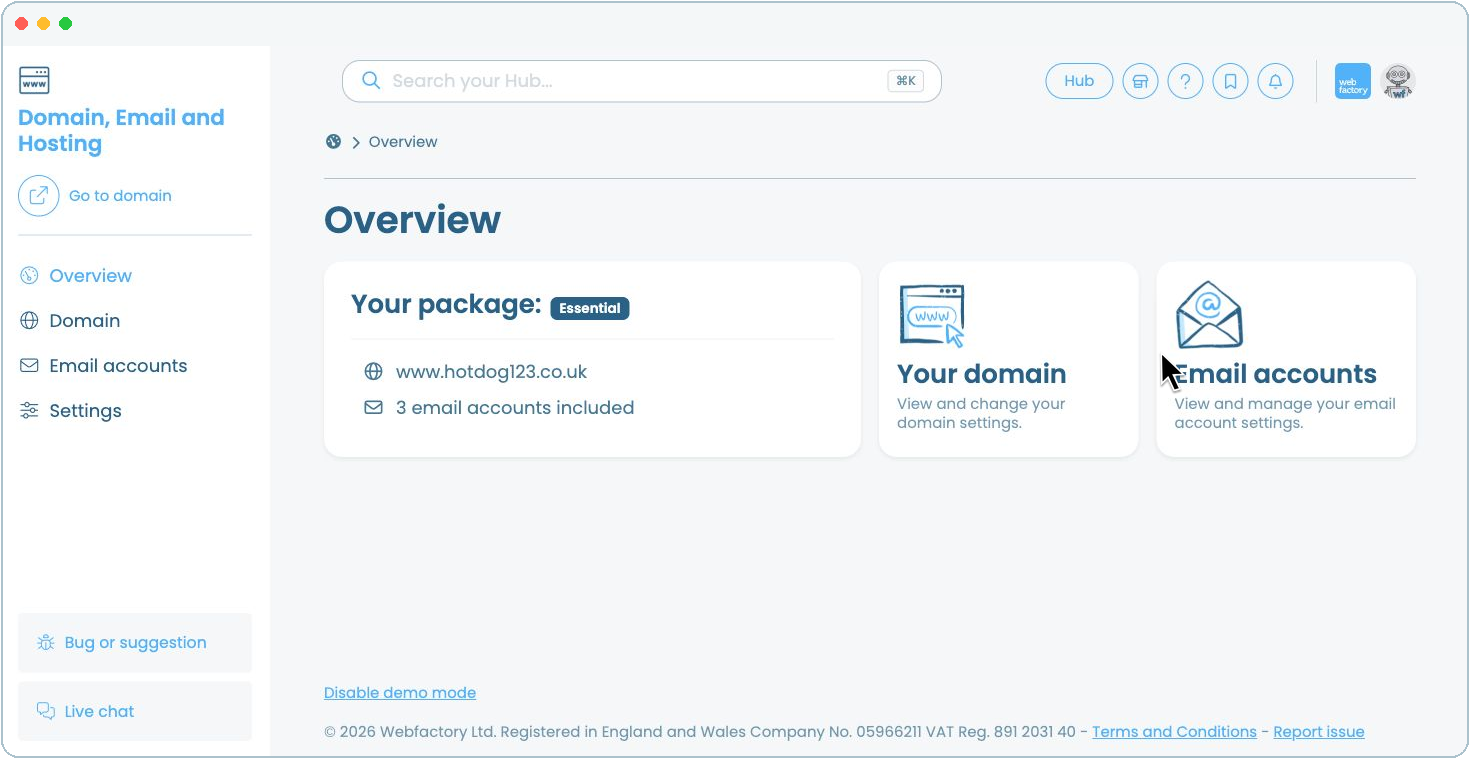
In your Hub, select the relevant 'Domain, Email and Hosting' product.
Find the mailbox you want to check. The storage bar shows how much space is being used and the mailbox limit.
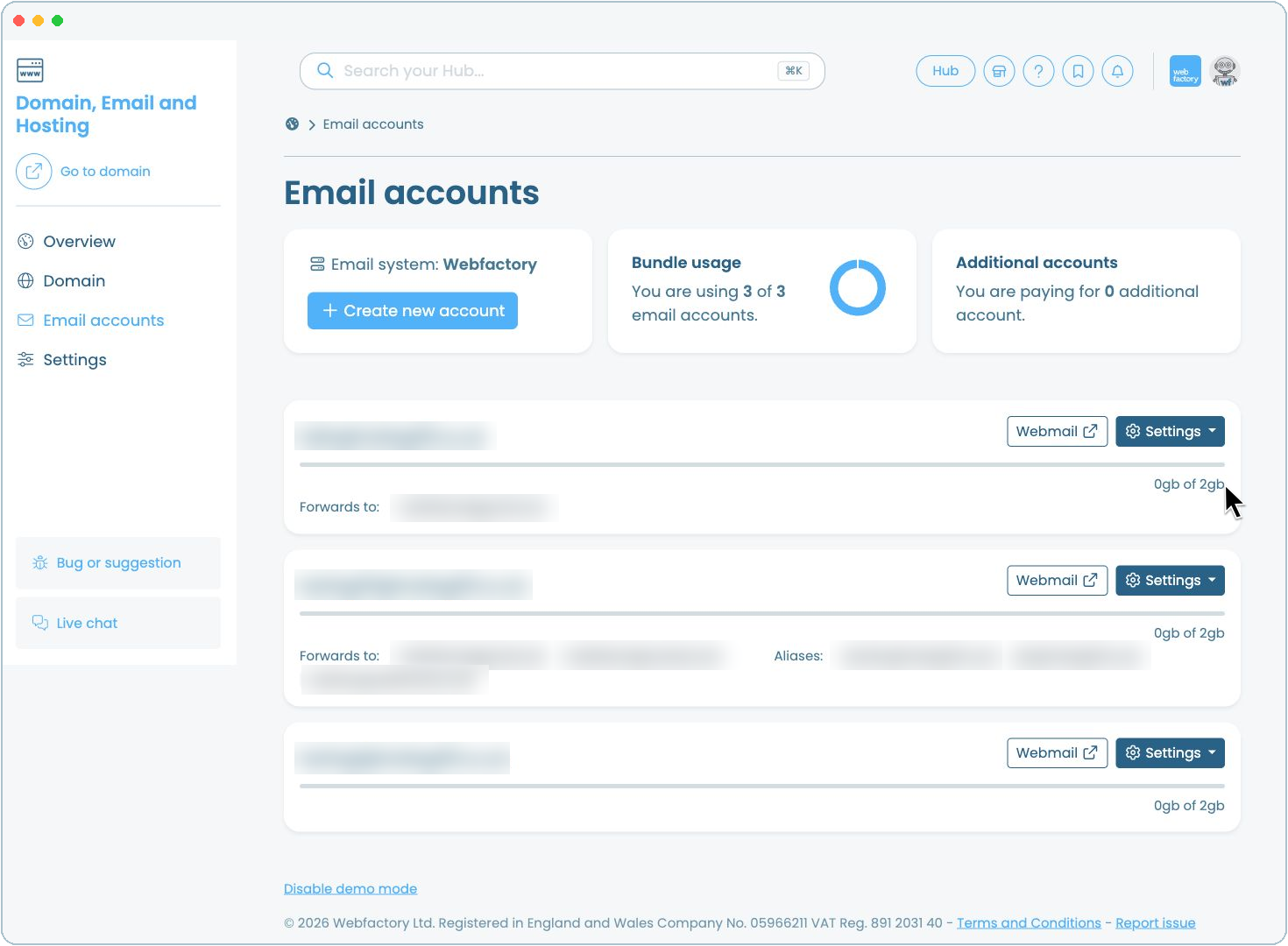
Click 'Webmail' next to the mailbox and log in to your account. Then delete messages you no longer need. Pay particular attention to messages with large attachments and review 'Sent Items'. To clear an entire folder, see how to empty a folder in Webmail.
Check 'Deleted Items' and 'Junk Email' folders, then empty them if you no longer need their contents. Deleted messages may continue to use storage until 'Deleted Items' is emptied.
Return to 'Email accounts' and refresh the page to check the mailbox storage again.
Emptying 'Deleted Items' or 'Junk Email' permanently removes the emails. Check both folders carefully before you clear them.